Botswana
 Zambia
 Congo
Congo Colombia
 China mainland
 Chile
Chile Chad
Chad Central African Republic
 Canada
 Cameroon
 Cambodia
 Burkina Faso
 Bulgaria
 Brunei Darussalam
 Brazil
 Aland Islands
 Bosnia and Herzegovina
 Bolivia
 Belgium
 Belarus
 Bangladesh
 Bahrain
 Azerbaijan
 Austria
 Australia
 Armenia
 Argentina
 Algeria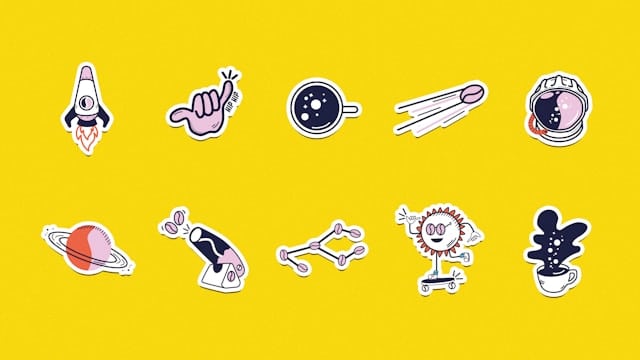

Last month, I accidentally created a sticker from a photo of my neighbor’s cat while testing iOS features. That sticker ended up plastered across my frequently used emojis for weeks. Every time I’d reach for the laughing emoji, there was Mr. Whiskers staring back at me. After that experience, I spent way too much time figuring out exactly how to delete stickers on iPhone—and trust me, it’s not as obvious as it should be.
Whether you’ve accumulated custom stickers you no longer use, downloaded sticker packs that lost their charm, or you’re dealing with the iOS 18.3 keyboard issue where stickers won’t disappear, this guide covers everything. I’ll walk you through each method based on what you’re trying to remove, why it matters, and how to actually make it work.
Why Delete Stickers From Your iPhone?
Before diving into the how-to, let’s talk about why you’d want to delete stickers in the first place. For me, it started with clutter. My sticker drawer had become a digital junk drawer—dozens of stickers I’d created once and never used again, third-party packs from apps I’d forgotten about, and Memoji variations I didn’t need.
Beyond the visual mess, stickers take up storage space. While a single custom sticker won’t break your phone, sticker packs can range from 50MB to 200MB each. If you’re someone who downloads sticker packs regularly or creates lots of custom ones from photos, that adds up. I freed up nearly 400MB just by clearing out old sticker packs I hadn’t touched in months.
There’s also the practical angle. When you’re trying to quickly find an emoji or sticker you actually use, scrolling through pages of outdated content slows you down. The fewer stickers you have cluttering your keyboard and Messages app, the faster you can find what you need.
Understanding Different Types of iPhone Stickers
Not all stickers work the same way on iPhone, which is why deleting them requires different approaches. Here’s what you’re dealing with:
Custom Stickers are ones you’ve created yourself from photos, Live Photos, or using Apple’s Genmoji feature in iOS 18. These stickers sync across all your Apple devices through iCloud. When you create a custom sticker, it automatically appears in both your Messages app sticker drawer and your emoji keyboard.
Third-Party Sticker Packs come from the App Store or bundle with other apps like Twitch or Reddit. These function as mini-apps within iMessage. Some can be hidden without deleting the parent app, while others require full app removal to disappear completely.
Memoji Stickers are Apple’s personalized avatar stickers. You can’t delete individual Memoji stickers without deleting the entire Memoji character they’re based on, but you can hide them from your keyboard.
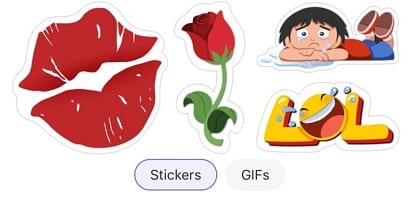
Message Stickers are stickers you’ve placed on message bubbles or photos in conversations. Removing these only affects what you see—other people in the conversation still see them.
Understanding which type you’re dealing with will save you time and frustration.
How to Delete Custom Stickers (The Live Tab Method)
This is the most common scenario—you want to delete stickers you’ve created from your own photos. Here’s the method that works every time.
Open Messages on your iPhone and tap into any conversation. Next to the text field, tap the plus icon to bring up your app drawer. Tap Stickers from the menu. You’ll see different tabs at the top. The critical part: make sure you’re on the Live tab, which shows a peeling sticker icon. You cannot delete stickers from the Recent tab—this catches a lot of people.
On the Live tab, find the sticker you want to delete. Touch and hold the sticker without dragging it around. After about a second, a menu pops up. Tap Delete from this menu. The sticker vanishes immediately in a puff of digital smoke.
If you need to delete multiple stickers at once, there’s a faster approach. Touch and hold any sticker and select Rearrange instead of Delete. This opens an editing mode where you’ll see a minus button next to each sticker. Tap the minus button for every sticker you want to remove. There’s no confirmation prompt, so be sure before you tap. When you’re done, tap any sticker or the background to exit editing mode.
This method works in Messages, but you can also access the same stickers through your emoji keyboard in any app. Just tap the emoji icon on your keyboard, switch to the Live tab (not Recent), and follow the same process.
Deleting Stickers From Your Emoji Keyboard
Many people don’t realize your custom stickers appear in two places: the Messages app and your emoji keyboard. Deleting from one location removes them from both, since they’re synced. Still, if you primarily encounter stickers through your emoji keyboard, here’s how to handle them directly.
Open any app where you use the keyboard—Notes, WhatsApp, Instagram, whatever works. Bring up the keyboard and tap the emoji button. Look for the stickers icon (it looks like a peeling sticker). Make absolutely sure you’re on the Live or custom stickers tab, not the Recent tab where deletion isn’t supported.
Touch and hold the sticker you want to remove, but don’t drag it. Lift your finger after holding for about a second. From the menu that appears, tap Delete. For bulk deletion, choose Rearrange and use the minus buttons that appear next to each sticker.
One thing I learned the hard way: if the menu doesn’t pop up, you’re probably holding too lightly or moving your finger. Try pressing a bit more firmly and keeping your finger completely still.
Removing Third-Party Sticker Packs
Third-party sticker packs work differently because they’re technically apps, not just files. You have two options: hide the sticker pack while keeping the main app, or delete everything together.
To hide a sticker pack without deleting its app, open Messages and tap into any conversation. Tap the plus icon, then Stickers. Look for Edit in the upper left corner and tap it. You’ll see a list of all installed sticker packs with toggle switches. Turn off the toggle for any pack you want to hide. The switch turns gray when it’s disabled. This removes the pack from your sticker drawer but leaves the associated app on your phone.
To completely delete a sticker pack and its app, find the app on your home screen or in the App Library. Touch and hold the app icon until the menu appears. Select Remove App, then Delete App to confirm. This clears both the app and its stickers from your iPhone.
If hiding or deleting through Messages doesn’t work—sometimes it bugs out—you can force deletion through Settings. Navigate to Settings, then General, then iPhone Storage. Scroll down to find the Messages app and tap it. Look for sticker-related apps in the list. Tap any sticker app you want to remove and select Delete App. This nuclear option works when the in-app method fails.
Fixing the iOS 18.3 Sticker Toggle Issue
If you’ve updated to iOS 18.3 or later, you might have noticed something frustrating. Even with the sticker toggle turned off in Settings, stickers still appear in your emoji keyboard. This isn’t your imagination—it’s a known issue that’s driven people nuts since the update released.
Here’s what’s happening: the “Send Stickers from Emoji Keyboard” toggle in Settings only prevents new stickers from appearing. It doesn’t remove stickers already in your frequently used section. So if you’ve used stickers before toggling the setting off, they stick around in Recent.
The workaround requires manually cleaning out your stickers. Go into your sticker collection (either through Messages or the emoji keyboard Live tab) and delete every sticker following the methods I described earlier. Once you’ve cleared all stickers from your collection, they’ll also disappear from the frequently used section. At that point, the toggle setting finally works as intended.
I spent a full afternoon figuring this out, deleting and re-toggling, trying to understand why Settings seemed broken. Turns out Apple’s implementation just requires this extra manual step. Not ideal, but at least there’s a solution.
Some people report the issue persists even in iOS 18.4 and beyond, so don’t assume an update will automatically fix it. The manual deletion method remains your best bet.
Managing Storage Space Used by Stickers
Sticker packs can quietly eat into your iPhone storage, especially animated ones. Here’s how to see what’s taking up space and clean it up.
Go to Settings, tap General, then iPhone Storage. Wait while your phone analyzes storage—this takes 10 to 30 seconds. Scroll down and find Messages. Tap it to see everything Messages-related consuming space. Look for sticker apps listed as separate items below the main Messages app.
Each sticker pack shows its size. If you see packs using 100MB or more that you rarely use, that’s prime deletion territory. Tap the sticker app, then Delete App. The space frees up instantly without affecting your message history or existing conversations.
I was shocked to find a sticker pack I’d downloaded once using 180MB. Deleting it gave me enough room for another podcast episode. Those small cleanups add up, especially if you’re constantly battling the “Storage Almost Full” message.
Preventing Unwanted Sticker Accumulation
The best way to manage stickers is preventing clutter before it builds up. A few simple habits make a huge difference.
Before downloading a sticker pack, ask yourself if you’ll actually use it more than once or twice. I used to grab every interesting-looking pack I saw, thinking I might use them someday. Spoiler: I never did. Now I only download packs I know I’ll use regularly.
If you create custom stickers from photos, be selective. That funny photo might seem sticker-worthy in the moment, but will you realistically use it in conversations? I’ve learned to pause before creating, which has cut my custom sticker collection by at least 70%.
Every few months, do a sticker audit. Go through your collection and delete anything you haven’t used recently. I do this quarterly now, usually while waiting for something else. Takes maybe five minutes and keeps things manageable.
Turn off automatic sticker creation if your phone keeps creating them accidentally. Some people (including me, at first) keep triggering sticker creation when they meant to do something else with photos. Being more mindful about when you’re in sticker creation mode helps a lot.
What Happens to Stickers You’ve Deleted
Once you delete a sticker or sticker pack, it’s gone for good from your device. If you created a custom sticker from a photo, you’ll need to recreate it if you want it back. The original photo stays in your Photos app—only the sticker version disappears.
For third-party sticker packs you’ve deleted, there’s good news. They stay in your App Store purchase history. You can re-download them anytime without paying again. Open the App Store, tap your profile icon, select Purchased, and find the sticker pack in your list. Tap the download icon to reinstall it. The pack reappears in your Messages app immediately.
Deleted stickers sync across all your iCloud-connected devices. Delete a sticker on your iPhone, and it disappears from your iPad and Mac too. You only need to delete once for it to go away everywhere. This is convenient but also means you can’t keep a sticker on one device while removing it from another.
iCloud backups don’t automatically restore sticker packs after you set up a new device or restore from backup. You’ll need to manually redownload each pack from the App Store if you want them back.
Common Sticker Deletion Issues and Fixes
Sometimes sticker deletion doesn’t work as smoothly as it should. Here are the issues I’ve encountered and how to fix them.
Delete option doesn’t appear: Make sure you’re on the Live tab, not Recent. Also check that you’re holding the sticker still without dragging. If it still doesn’t work, try closing and reopening the Messages app.
Stickers reappear after deletion: This usually means they’re not actually deleted, just hidden temporarily. Check if the sticker is tied to an app you still have installed. Some apps recreate their stickers if the parent app updates.
Can’t delete stickers in some apps: Not all apps support sticker management. Deletion works in Messages, Notes, and WhatsApp, but might not work in apps like YouTube or random third-party apps that don’t integrate with iPhone’s sticker system.
Sticker toggle in Settings doesn’t work: If you’re on iOS 18.3 or later, this is the known bug I mentioned earlier. You need to manually delete all stickers before the toggle takes effect.
Can’t delete Memoji stickers: You can’t delete individual Memoji stickers. You have to delete the entire Memoji character they’re based on, or hide all Memoji stickers through Settings.
If none of these fixes work, try restarting your iPhone. Sometimes the Messages app or keyboard gets stuck, and a restart refreshes everything. I’ve had a few times where sticker changes wouldn’t save until I rebooted.
Frequently Asked Questions
Can I delete stickers from conversations? You can remove stickers you’ve placed on message bubbles or photos, but only for yourself. Open the conversation, touch and hold the message bubble with the sticker, tap Sticker Details, then swipe left on the sticker and tap the delete button. The other person still sees the sticker on their end.
Will deleting stickers affect my conversations? No. Deleting a sticker from your collection doesn’t remove it from past messages where you’ve already used it. Those stickers stay in the conversation history.
Do stickers use cellular data? Creating and storing stickers uses minimal data since they’re saved locally. Syncing through iCloud uses some data, but we’re talking kilobytes, not megabytes. The storage impact on your device is more significant than data usage.
Can I organize stickers into folders? Apple doesn’t offer built-in folder organization for stickers. Your best option is to delete ones you don’t use and rely on the Recently Used section to surface your favorites.
How do I stop apps from automatically adding sticker packs? Some apps like Twitch or Reddit automatically add their stickers when you install the app. To prevent this, disable the sticker pack in Messages right after installing the app. Go to Messages, tap the plus icon, select Stickers, tap Edit, and turn off the toggle for that app’s sticker pack.
Can I delete stickers on iPad the same way? Yes. iPads running iPadOS use the same sticker system as iPhones. All the methods I described work identically on iPad.
Final Thoughts
Learning how to delete stickers on iPhone shouldn’t require reading through dozens of support threads and testing every possible method. But here we are. Apple could make this process more intuitive—like actually having the Settings toggle work properly in iOS 18.3, or making the Recent vs Live tab distinction more obvious.
Until Apple streamlines things, hopefully this guide saves you the time and frustration I went through. Whether you’re clearing out accidental creations, managing storage space, or just tidying up your keyboard, you now have every method at your disposal.
The key takeaways: use the Live tab for custom sticker deletion, understand the difference between hiding and deleting third-party packs, manually clear stickers if you’re on iOS 18.3 or later, and do regular cleanups to prevent clutter from building up. With those basics, managing your iPhone stickers becomes straightforward instead of a mystery.
Now if you’ll excuse me, I need to go make sure I didn’t accidentally create any new stickers while writing this.

Blog Author
Peter
Peter started BazTel.co to make mobile internet easier for travellers. He noticed how tough it was to find good network options while visiting new countries. That’s when he built BazTel — a place where anyone can buy eSIMs online without confusion or long steps. He believes tech should be simple and useful, not complicated. When he’s free, he likes to travel, test BazTel himself, and keep improving it based on real user problems.