Botswana
 Zambia
 Congo
Congo Colombia
 China mainland
 Chile
Chile Chad
Chad Central African Republic
 Canada
 Cameroon
 Cambodia
 Burkina Faso
 Bulgaria
 Brunei Darussalam
 Brazil
 Aland Islands
 Bosnia and Herzegovina
 Bolivia
 Belgium
 Belarus
 Bangladesh
 Bahrain
 Azerbaijan
 Austria
 Australia
 Armenia
 Argentina
 Algeria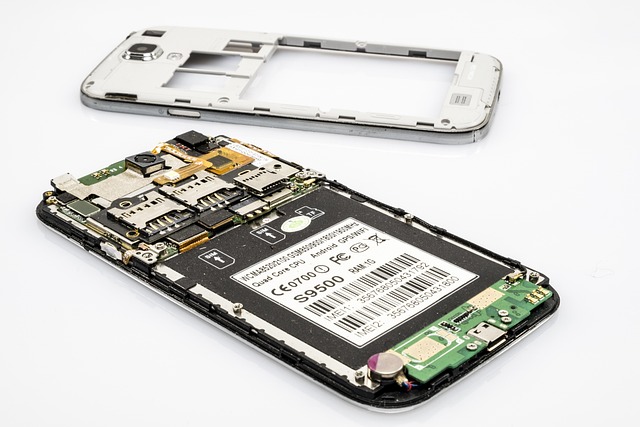

Your iPhone’s IMEI number is like a digital fingerprint that uniquely identifies your device. Whether you need it for insurance claims, carrier unlocking, warranty verification, or reporting a stolen phone, knowing how to locate this 15-digit code is essential. In this guide, we’ll walk you through seven reliable methods to find your iPhone IMEI number, even if you don’t have physical access to your device.
Understanding Your iPhone IMEI Number
Before diving into the methods, let’s clarify what an IMEI number actually is. IMEI stands for International Mobile Equipment Identity, a unique 15-digit identifier assigned to every cellular-capable iPhone during manufacturing. Your iPhone’s IMEI serves as a unique fingerprint for your device, essential for verifying ownership, recovering lost or stolen phones, and managing device security. Unlike your Apple ID or phone number, which can change, your IMEI remains permanently tied to your specific device.
As of 2026, modern iPhones often display two IMEI numbers because they support dual SIM functionality through a physical SIM card slot and an eSIM. Each SIM connection requires its own unique identifier, which is why you’ll see both IMEI and IMEI2 in your iPhone Settings. This is completely normal for iPhone models from the iPhone XS and newer.
If you’re using an iPad, keep in mind that only iPads with cellular capability have IMEI numbers—WiFi-only iPad models do not have an IMEI.
Method 1: Check iPhone Settings (Fastest Way)
The quickest way to find your IMEI number is through your iPhone Settings, taking less than 30 seconds. Open the Settings app on your iPhone, then tap General followed by About to navigate to the ‘About’ page. Scroll down past your device name, software version, and model number until you locate the IMEI field. You might need to scroll slightly to find it, as it appears below the serial number.
To copy your IMEI for pasting elsewhere, press and hold directly on the number itself. A menu will appear allowing you to copy the digits to your clipboard. You can then paste the copied IMEI into support or registration forms as needed. This method works on all iPhone models running iOS 10.3 or later and is accessible even if your device has a screen lock enabled.
Method 2: Dial the Universal IMEI Code
Every iPhone supports a quick code that instantly displays your IMEI number on screen. Open the Phone app and navigate to the keypad, then dial *#06# exactly as shown. You don’t need to press the call button—the moment you enter the final # symbol, your iPhone will automatically display the IMEI number in a popup window.
This method works universally across all iPhone models and iOS versions. It’s particularly useful when you need to quickly verify your IMEI without navigating through multiple settings menus. However, note that you cannot copy the number directly from this screen, so you’ll need to write it down or take a screenshot if you need to share it. In some device menus or software, you may be able to ‘click phone number’ to reveal or copy the IMEI, which can make the process easier.
Method 3: Find IMEI Through Your Apple ID Account
If you don’t have physical access to your iPhone, you can still retrieve the IMEI number by logging into your Apple ID account on a web browser or a trusted device. Visit account.apple.com on any computer or device and log in using the Apple ID associated with your iPhone. Once logged in, you can access the Devices section, which displays all devices signed in to your Apple Account.

If you have another device signed in to your Apple ID, such as an iPad or Mac, you can also view your iPhone’s IMEI by going to Settings, selecting your Apple ID, and then choosing the other device from the list of devices signed in.
Click on your iPhone from the list of devices, and a popup window will appear showing detailed information including the serial number, IMEI/MEID, and other identifiers. The Devices section in your Apple ID settings allows the user to view IMEI and other device information. This method is invaluable when your iPhone is lost, stolen, or broken, as it allows you to access the IMEI remotely without needing the physical device.
Method 4: Check the Original iPhone Box
If you still have the original packaging your iPhone came in, the IMEI number is printed on the exterior of the box. Look for a white sticker on the back or bottom of the box, typically near the barcode. The sticker displays multiple pieces of information including the serial number, model number, and IMEI.
The IMEI will be clearly labeled and consists of 15 digits. This method is particularly useful when setting up a new iPhone for the first time or when you need to verify device information before activation. Keep in mind that iPhone 14 models and later no longer have IMEI numbers engraved on the device itself, making the original packaging even more important as a reference point.
You may need the IMEI from the box for Apple registration or when filling out Apple support forms. You can copy the IMEI from the box and paste it into online registration or support forms if required.
Method 5: Locate IMEI on the SIM Tray
For certain iPhone models manufactured between 2015 and 2021, you can find the IMEI number engraved directly on the SIM card tray. This includes iPhone 6s, iPhone 6s Plus, iPhone 7, iPhone 8, iPhone X, iPhone 11, iPhone 12, and iPhone 13 models. iPhone SE (2nd and 3rd generation) also feature this engraving.
To access it, use a SIM ejector tool or straightened paperclip to gently pop out the SIM tray from the side of your iPhone. Flip the tray over and examine it carefully—the IMEI should be etched in very small print on the metal surface. You may need to angle the tray under good lighting or use your phone camera’s zoom feature to read the numbers clearly.
For added security, mark or record the IMEI number from the SIM tray and keep it in a safe place. This can help verify ownership or assist in recovery if your iPhone is ever lost or stolen.
Method 6: View IMEI on Older iPhone Models
If you own an iPhone 6, iPhone 6 Plus, iPhone 5, iPhone 5s, iPhone 5c, or earlier models, the IMEI number is engraved on the back of the device itself. Simply flip your iPhone over and look at the bottom portion of the back panel. The IMEI will be printed in small text along with regulatory information and the Apple logo.
For the very first iPhone (2G), both the serial number and IMEI are engraved on the back near the bottom. This physical engraving method was standard practice before Apple moved to displaying this information exclusively through software in newer models.
Method 7: Use iTunes or Finder on a Computer
When your iPhone is connected to a computer, you can view the IMEI through Apple’s desktop software. On Mac computers running macOS Catalina 10.15 or later, open Finder and select your iPhone from the sidebar under Locations. Ensure you’re on the General tab, then click on your phone number or device model under your iPhone’s name to cycle through and display the IMEI/MEID.
For older Mac computers running macOS Mojave or earlier, or for Windows PCs—including those using Microsoft operating systems—open iTunes instead. Connect your iPhone via USB cable, click on the device icon when it appears, and navigate to the Summary tab. Click on Phone Number beneath your device information to reveal the IMEI. This method is helpful when your iPhone screen is broken or unresponsive but the device still powers on.
Using Your Serial Number to Find IMEI
If you’re unable to access your iPhone’s IMEI number directly, your device’s serial number can sometimes help you retrieve it. While the serial number and IMEI serve different purposes, Apple and many service providers can use your serial number to look up your IMEI in their systems—especially useful if your iPhone is lost, stolen, or completely unresponsive.
To find your serial number, open the Settings app, tap General, then About. Here, you’ll see your serial number listed near the top, just above the IMEI field. If you don’t have your device, you can also find the serial number by signing in to your Apple ID account at appleid.apple.com, scrolling to the Devices section, and selecting your iPhone. The serial number is also printed on the original box and, for some models, on the SIM tray.
Once you have your serial number, contact Apple Support or your mobile carrier. Provide them with your serial number and proof of ownership, and they can often retrieve your IMEI number from their records. This method is especially helpful if you need to report a lost or stolen iPhone, file an insurance claim, or verify device information for warranty or service purposes.
Why Does My iPhone Show Two IMEI Numbers?
If you notice both IMEI and IMEI2 listed in your iPhone Settings, this is completely normal for modern devices. Starting with the iPhone XS in 2018, Apple introduced dual SIM capabilities, allowing iPhones to use both a physical SIM card and an eSIM simultaneously. Each SIM connection requires its own unique IMEI identifier for network registration, and your mobile company or service provider uses these IMEI numbers to verify your device and manage network access.
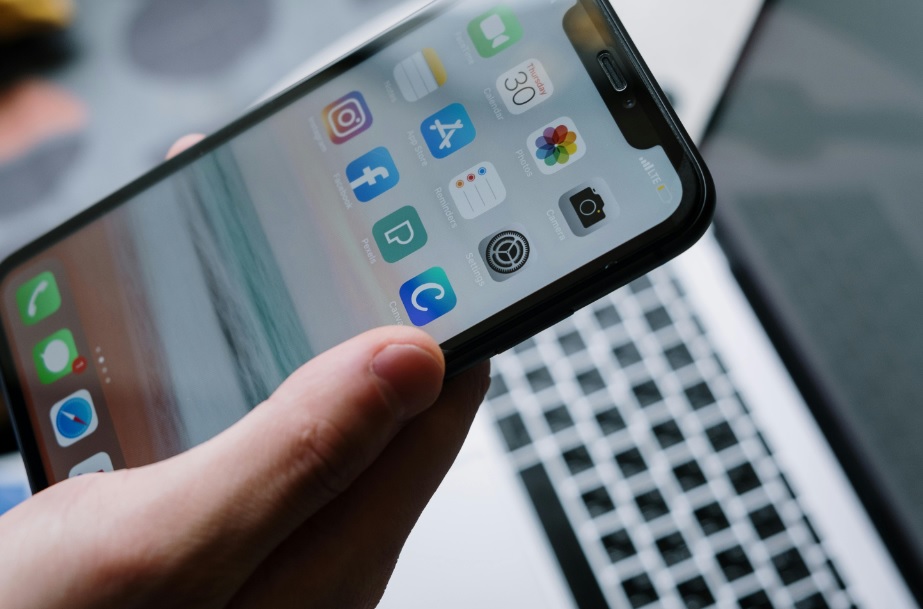
IMEI (or “Primary”) corresponds to your physical SIM card slot, while IMEI2 (or “Digital SIM”) relates to the eSIM functionality. Even if you’re only using one SIM card currently, both IMEI numbers exist because the iPhone hardware supports dual connectivity. This dual-number system benefits travelers who use local SIM cards while keeping their home number active, or professionals maintaining separate work and personal lines on a single device.
When You Need Your iPhone IMEI Number
Understanding when to use your IMEI number helps you appreciate why it’s important to know how to find it. In some cases, you may need to create or retrieve your IMEI number for verification, support, or warranty purposes. Mobile carriers require the IMEI when activating a new line, switching carriers, or unlocking your device from a specific network. If your iPhone is lost or stolen, providing the IMEI to your carrier allows them to blacklist the device, rendering it unusable on cellular networks even if someone changes the SIM card.
Insurance companies typically request the IMEI when filing claims for lost, stolen, or damaged iPhones. Warranty providers and repair services use the IMEI to verify your device’s eligibility for coverage and to look up your purchase date and warranty status. Law enforcement agencies may also request the IMEI when investigating theft cases, as this number can help track and recover stolen devices.
What If These Methods Don’t Work?
In rare situations where you cannot access your IMEI through any of the methods above, contact Apple Support directly with proof of purchase. If you are unable to retrieve your IMEI, use this link to reach Apple Support for further assistance. If you cannot access your Apple ID due to two-factor authentication, you may need to contact Apple Support for assistance.
When standard recovery methods fail, be prepared to provide other info, such as proof of purchase or account details, to help verify your ownership and resolve the issue. They can verify your ownership through your purchase receipt or credit card statement and provide you with the IMEI information. Your mobile carrier may also have your IMEI on file if you purchased the iPhone through them or activated it on their network.
If you’re buying a used iPhone and the seller cannot provide the IMEI, this should raise immediate red flags. A legitimate seller should easily be able to show you the IMEI through iPhone Settings or the original box. Being unable or unwilling to provide this information may indicate the device is stolen, blacklisted, or otherwise problematic.
IMEI vs. Serial Number: Key Differences
Many iPhone owners confuse the IMEI number with the serial number, but these serve different purposes. Your iPhone’s serial number is Apple’s internal identifier used for warranty tracking, support services, and manufacturing records. It works across all Apple products including iPads, MacBooks, and AirPods.
The IMEI number is specific to cellular connectivity and is used by mobile carriers to identify your device on their networks. WiFi-only iPads don’t have IMEI numbers because they cannot connect to cellular networks. When contacting Apple Support about warranty issues, they’ll typically ask for your serial number. When dealing with your mobile carrier about network problems or unlocking, they’ll need your IMEI.
Protecting Your IMEI Information
While your IMEI isn’t considered sensitive personal information like a password or social security number, you should still be cautious about sharing it publicly. Scammers can potentially clone IMEI numbers onto counterfeit devices or use them for fraudulent activities. Only share your IMEI with trusted parties such as your mobile carrier, insurance provider, Apple Support, or law enforcement.
When selling a used iPhone, many sellers choose to share only partial IMEI digits publicly (for example, showing the first 8 digits and last 2 digits with asterisks in between). Once you’ve completed the sale, provide the full IMEI to the buyer for verification purposes. This balanced approach allows potential buyers to verify the device isn’t blacklisted while protecting you from IMEI-related scams.
Finding IMEI on a Locked or Broken iPhone
If your iPhone screen is locked or broken, several methods remain available. The *#06# dial code works on locked screens as long as the Phone app is accessible. The original packaging method requires no device access at all. Your Apple ID account method works regardless of your iPhone’s physical condition.
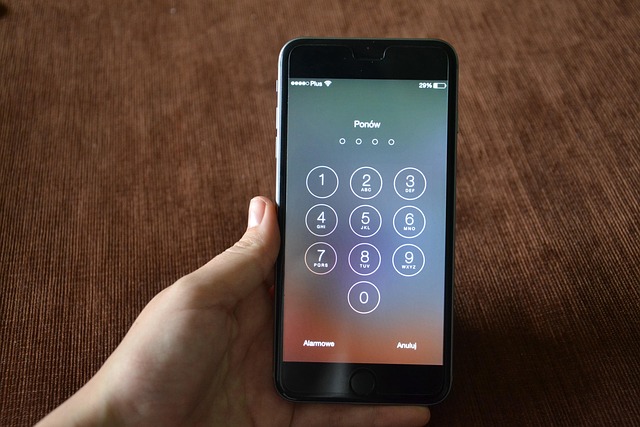
Additionally, if you enabled iCloud backup before losing access to your iPhone, you can log into your iCloud account and check your backup for the IMEI number.
For severely damaged iPhones that won’t power on, the SIM tray (on compatible models) and original box remain your only physical options. If those aren’t available, contact your mobile carrier—they maintain records of IMEI numbers for devices activated on their network and can retrieve this information using your account details and phone number.
Troubleshooting a Lost iPhone
Losing your iPhone can be stressful, but having your IMEI number on hand can make the recovery process much smoother. If your device is lost or stolen, your first step should be to report the loss to your mobile carrier and, if you’re traveling internationally, to your eSIM provider like Baztel. Providing your IMEI number allows your carrier to blacklist the device, preventing unauthorized use and protecting your phone service.
If you don’t have your iPhone, you can still access your IMEI number by logging into your Apple ID account online and checking the Devices section, or by locating the original box or SIM tray if you have them. Your carrier may also have your IMEI on file if you activated your phone with them. For added security, consider marking your device as lost in the Find My app, which can help you track its location or remotely erase your data.
Act quickly to secure your Apple account and any sensitive information linked to your device. Change your Apple ID password, enable two-factor authentication if you haven’t already, and notify your service provider. Keeping your IMEI number accessible—such as saving it in a secure note or password manager—can save valuable time in these situations, especially for frequent travelers and digital nomads who rely on uninterrupted connectivity.
Conclusion and Final Tips
Knowing how to find your iPhone’s IMEI number is essential for protecting your device, managing your phone service, and ensuring a smooth experience whether you’re at home or traveling abroad. Take a moment to locate your IMEI now and store it securely—consider adding it to a password manager, a secure note app, or even emailing it to yourself for easy access.
For international travelers, digital nomads, and remote workers, having your IMEI number handy is especially important when using global eSIM services like BazTel. With instant QR code activation, flexible international data plans, and coverage in over 160 countries, BazTel makes it easy to stay connected wherever you go. Should you ever need to troubleshoot, switch devices, or report a lost iPhone, your IMEI number will be a key piece of information.
Stay proactive: regularly back up your device information, keep your Apple ID secure, and familiarize yourself with the various ways to access your IMEI. With these tips, you’ll be prepared for any situation—whether you’re upgrading your phone, traveling the world, or simply keeping your device safe.

Blog Author
Peter
Peter started BazTel.co to make mobile internet easier for travellers. He noticed how tough it was to find good network options while visiting new countries. That’s when he built BazTel — a place where anyone can buy eSIMs online without confusion or long steps. He believes tech should be simple and useful, not complicated. When he’s free, he likes to travel, test BazTel himself, and keep improving it based on real user problems.