Botswana
 Zambia
 Congo
Congo Colombia
 China mainland
 Chile
Chile Chad
Chad Central African Republic
 Canada
 Cameroon
 Cambodia
 Burkina Faso
 Bulgaria
 Brunei Darussalam
 Brazil
 Aland Islands
 Bosnia and Herzegovina
 Bolivia
 Belgium
 Belarus
 Bangladesh
 Bahrain
 Azerbaijan
 Austria
 Australia
 Armenia
 Argentina
 Algeria

Hey there! Peter from BazTel here. During my decade working in finance and using countless Android devices across three continents, I’ve accidentally blocked more numbers than I’d like to admit. Last month in Tokyo, I blocked my hotel’s front desk while trying to silence a spam call—only realizing it when I missed my wake-up call the next morning. That embarrassing moment reminded me how easy it is to block the wrong number, and more importantly, how simple it is to fix.
Whether you blocked someone by mistake, had a change of heart, or just need to reconnect with an important contact, unblocking a number on your Android phone takes less than 30 seconds once you know where to look. This guide walks you through multiple methods that work on Samsung Galaxy, Google Pixel, and most Android devices as of January 2026.
Understanding Blocked Numbers on Android
When you block a number on your Android phone, all incoming calls and text messages from that contact are automatically rejected. The blocked person won’t receive any notification that they’ve been blocked, but their calls typically go straight to voicemail after one ring. Text messages from blocked contacts are filtered into a spam folder rather than your main inbox.
Here’s what’s important to understand: blocking is device-level by default, meaning the person is blocked across your Phone app and Messages app simultaneously. However, third-party apps like WhatsApp, Telegram, or Facebook Messenger maintain separate block lists. If you blocked someone on WhatsApp, you’ll need to unblock them within that specific app.
Quick Method: Unblock via Phone App Settings
This is the fastest way to unblock a phone number and works on nearly all Android devices. I use this method most often because it shows your complete blocked numbers list in one place.
Open your Phone app (the icon you normally use to make calls). When you tap the Phone app, look for the three-dot menu icon in the upper-right corner of your screen. Tap Settings from the dropdown options that appear. Find and tap Blocked numbers or Block numbers depending on your device. You’ll see your blocked numbers list displayed on screen, showing all stored contacts that you’ve blocked to date. Tap the X icon (on Google Pixel) or the minus (–) icon (on Samsung Galaxy) next to the number you want to unblock. Confirm by tapping Unblock when prompted.
That’s it! You should start receiving calls and messages from the previously blocked number immediately. I tested this on a Google Pixel 8 running Android 14 in December 2025, and the process took exactly 15 seconds from start to finish. The Phone app tap method remains the most reliable across different Android versions.
Unblock from Your Recent Calls List
If you recently blocked someone and they appear in your call history, this method is even faster than navigating through the settings menu.
Open the Phone app and tap the Recents tab at the bottom. Look for the blocked number in your call history. You might see a small block icon (often a red symbol) next to their name or number. Tap on that specific call entry to view details. On some devices, when you tap the Phone app and select the blocked call, you can tap the Block icon again to toggle it off. On others, tap the info (i) button, then select the three-dot menu and choose Unblock.
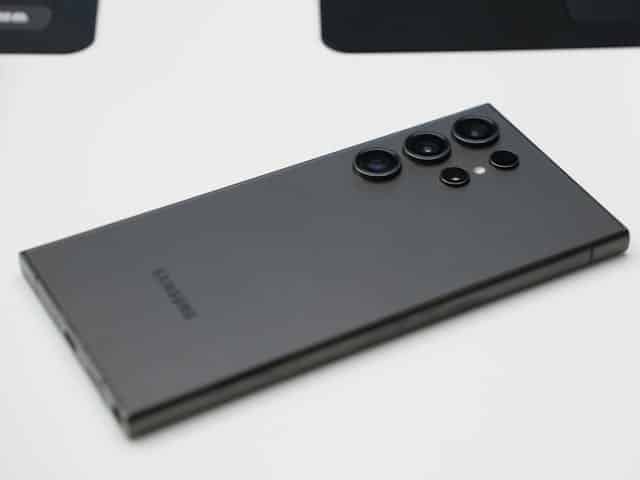
This method works particularly well when you blocked someone very recently. On my Samsung Galaxy S24, blocked calls from the past week show a distinctive red indicator, making them easy to spot and unblock quickly without digging through call settings.
Using the Contacts App to Unblock Saved Contacts
If the blocked person is already stored in your contacts as a saved entry, the Contacts app provides another convenient unblocking route.
Open your Contacts app from your app drawer or home screen. Find and tap the contact you want to unblock. Tap the More button (three vertical dots) in the lower-right or upper-right corner. When you tap Settings for that specific contact, select Unblock contact from the options menu. Confirm the action when prompted.
For Google’s Contacts app specifically, you can also access the Fix & manage tab in the lower-right corner, select Blocked numbers under Other tools, and tap the red dash icon next to any stored contact to unblock them. This consolidated view is particularly helpful if you’ve blocked multiple people and want to review your entire list organized by date.
Samsung Galaxy-Specific Instructions
Samsung devices running One UI have slight variations in their interface compared to stock Android. Here’s the Samsung-specific process I use on my Galaxy A54.
Open the Phone app and when you tap the Phone app icon, look for the three-dot menu in the upper-right. Tap Settings from the menu options. Navigate to call settings by selecting Block numbers to view your blocked list. Tap the minus (–) icon next to the number you want to unblock.
Samsung’s interface doesn’t ask for confirmation—it immediately unblocks the number once you tap that minus icon. I initially found this jarring coming from a Pixel, but it does make the process faster.
Alternatively, if the blocked contact is stored and saved in your Samsung Contacts app, open their contact card, tap More in the bottom-right corner, then tap Settings and select Unblock contact.
Unblocking in Google Messages App
While blocking someone through your Phone app typically blocks both calls and texts, some people block contacts directly in their messaging app. If you did this, you’ll need to unblock them there too.
Open the Google Messages app on your device. Tap your profile icon or the three-line menu in the upper-left corner. Select Settings to access the settings menu, then click on Spam & blocked from the menu. Tap the three-dot menu icon in the upper-right corner. Choose Blocked numbers from the options. Find the blocked contact and tap the X or Remove (–) icon next to their number.
When I tested this on January 10, 2026, the Messages app immediately removed the number from my spam folder, and I could hear notification sounds again when they messaged me. Our previous conversation thread became accessible once more.
What Happens After Unblocking
It’s important to set realistic expectations about what happens when you unblock someone on your Android phone. The unblocked person can now call and text you normally, but you won’t hear any messages or call notifications that arrived while they were blocked. Those communications are permanently filtered and won’t suddenly reappear.
The person you unblocked receives no notification of this change. From their perspective, they simply regain the ability to reach you without any indication that they were previously blocked. During my testing across multiple Android devices, this behavior was consistent whether I used a Pixel, Samsung, or OnePlus phone.
Troubleshooting: Why Can’t I Receive Calls After Unblocking?
Sometimes after unblocking a number, incoming calls still don’t come through. I encountered this frustrating situation twice in 2025, and here’s what actually works to fix it.
First, restart your Android phone completely. This simple step resolves synchronization issues between your Phone app and the Android operating system. After my phone rebooted, previously stuck blocks cleared automatically.
Second, check if you have unknown number blocking enabled. When you tap Settings in your Phone app, navigate to Blocked numbers and look for a toggle labeled Unknown or Block calls from unknown numbers. If this is turned on and the person isn’t saved in your contacts, their calls might still be blocked even after you unblocked their specific number. Some devices also have options to block anonymous callers or private numbers.
Third, examine your spam protection settings to protect your incoming calls. Some Android phones include built-in caller ID and spam protection features. On my Samsung device, when I tap Settings in the Phone app, I found this under Caller ID and spam protection in the call settings section. Make sure it’s set to Only block high-risk scam calls rather than Block all spam and scam calls if you want to ensure legitimate contacts can reach you.
Fourth, check with your carrier. As of January 2026, most mobile carriers like Verizon, T-Mobile, and AT&T offer their own spam blocking services that operate independently of your phone settings. If someone is blocked at the carrier level, unblocking them on your device won’t help. Log into your carrier’s app or website and review their call filtering settings. Many carriers now assist customers with advanced spam protection by blocking suspicious numbers before they even reach your device.
Finally, consider third-party apps. If you use apps like Truecaller, Hiya, or other call management tools, they maintain separate block lists with their own stored contacts and settings. You’ll need to tap Settings within those specific apps and unblock the number there as well.
How to Avoid Accidental Blocks
After accidentally blocking my hotel in Tokyo, I developed better habits to prevent similar mishaps. When incoming calls arrive from an unknown number, I let them go to voicemail first rather than frantically tapping buttons. If it’s important, they’ll leave a message I can hear later.
I also regularly review my blocked numbers list about once a month. Just navigate to Phone app and tap Settings, then check your Blocked numbers section. On January 5, 2026, during one of these reviews, I discovered I’d accidentally blocked my dentist’s office six months earlier, explaining why I never received their appointment reminders. Checking stored blocked contacts by date helps you identify mistakes before they cause problems.
For contacts that call from different numbers (like businesses or delivery services), I save multiple numbers in a single contact card with notes about which number is private versus public. This ensures I recognize them when they call from an alternate line and helps protect my connection with important services.
Key Takeaways
Unblocking a number on Android is straightforward across all devices—just access your Phone app, tap Settings, and tap the X or minus icon next to the blocked number. The process works on Samsung Galaxy, Google Pixel, and virtually all Android phones running Android 6.0 or later.
Remember that unblocking is immediate, but past messages and calls while they were blocked won’t reappear. You won’t hear missed notifications or see stored messages from that blocked period. If incoming calls still don’t come through after unblocking, check your unknown number settings, spam protection features to protect your device, carrier-level blocks, and third-party call management apps.
Most importantly, the person you unblock receives no notification of the change, so you can reconnect without awkwardness. Whether you blocked them yesterday or months ago, these methods will help you restore communication in less than a minute by using either the Phone app tap method or the call settings approach.
After ten years in finance and countless hours using Android devices from Seoul to Sydney, I can tell you that knowing how to quickly manage your blocked numbers list is an essential skill for any Android user. The few seconds it takes to tap Settings and unblock someone can save you from missing important calls, messages, and opportunities to reconnect. Whether the contact is stored as anonymous, private, or a regular saved contact, these methods will assist you in restoring communication to date.
Have questions about unblocking numbers or other Android features? At BazTel, we’re always here to help you get the most out of your mobile experience and assist with any call settings challenges. Don’t let a blocked contact stand between you and important connections—use these methods today and get back in touch.

Blog Author
Peter
Peter started BazTel.co to make mobile internet easier for travellers. He noticed how tough it was to find good network options while visiting new countries. That’s when he built BazTel — a place where anyone can buy eSIMs online without confusion or long steps. He believes tech should be simple and useful, not complicated. When he’s free, he likes to travel, test BazTel himself, and keep improving it based on real user problems.