Botswana
 Zambia
 Congo
Congo Colombia
 China mainland
 Chile
Chile Chad
Chad Central African Republic
 Canada
 Cameroon
 Cambodia
 Burkina Faso
 Bulgaria
 Brunei Darussalam
 Brazil
 Aland Islands
 Bosnia and Herzegovina
 Bolivia
 Belgium
 Belarus
 Bangladesh
 Bahrain
 Azerbaijan
 Austria
 Australia
 Armenia
 Argentina
 Algeria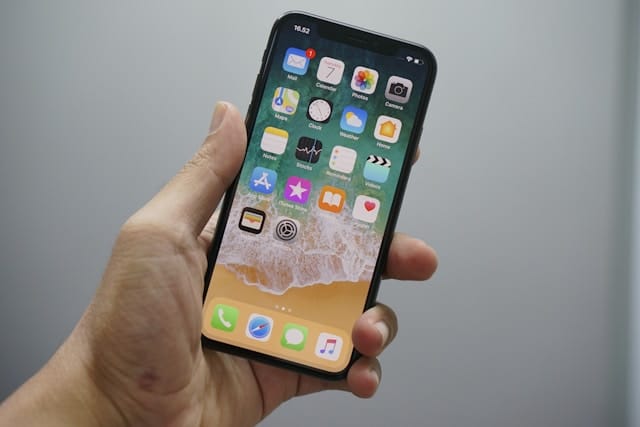

Last Tuesday, I nearly missed a crucial call from my bank about potential fraud on my account. The reason? I’d accidentally blocked their phone number months ago while clearing out spam calls. As someone who works in finance at BazTel but has a passion for telecommunications and technology, I should have known better. That frustrating experience taught me just how important it is to manage your blocked contacts properly on your Apple iPhone.
If you’ve found yourself in a similar situation needing to unblock a number, don’t worry. The process is straightforward with simple steps that take less than 30 seconds once you know where to locate the blocked list.
The Fastest Way to Unblock Numbers on Your Apple iPhone
The quickest method to unblock a contact on your device is through the Settings app. This approach works regardless of whether you blocked certain numbers through the Phone app, Messages, or FaceTime, because your Apple iPhone manages all blocked contacts in one central blocked contacts list.
Here’s exactly what to do. Open Settings from your home screen and scroll down until you find “Phone” in the Settings menu. Tap it, then locate “Blocked Contacts” (on older versions, this appears as “Call Blocking & Identification”). Once you’re viewing your blocked contacts list, find the specific number you want to unblock. Swipe left on that contact, and you’ll see the unblock button appear in red. Tap unblock, and you’re done.
The contact is immediately removed from your blocked list. They can now receive calls from you, send text messages through the Messages app, and initiate FaceTime calls without any restrictions.
How to Unblock a Number Using the Phone App
If you recently received calls from the blocked contact, there’s an even faster route through the Phone app. I discovered this helpful method when I needed to quickly unblock a delivery person who was trying to reach me.
Open the Phone app from your home screen and tap the Recents section at the bottom. Find the phone number you want to unblock in your call history. Next to the specific number, you’ll see a small information icon. Tap that icon to access the contact details. Scroll to the bottom of the screen, and you’ll find “Unblock this Caller” displayed in blue text. Tap unblock to confirm, and communication is restored.
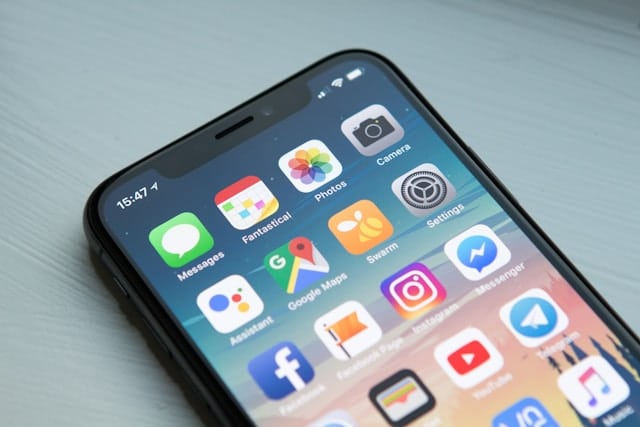
This method is particularly helpful when you can’t remember the exact phone number but know they attempted calls recently. The Phone app keeps a complete history of incoming calls, even from blocked numbers on your blocked list.
Unblocking Through Your Contacts List
For people already saved in your contacts list, you can easily unblock them without diving into the Settings app. This is helpful when you’re reconciling with a person after a disagreement or realized you blocked the desired contact by mistake.
Launch the Phone app and tap Contacts at the bottom. Search for and select the contact you want to unblock from your contacts list. Their information screen will display all their details. Scroll all the way down, and you’ll see either “Block this Contact” or “Unblock this Caller” depending on their current status. If it says “Unblock this Caller,” tap unblock to restore communication with the previously blocked contact.
One thing that confused me initially: you must use the Contacts section within the Phone app on your Apple iPhone. The standalone Contacts app doesn’t currently offer blocking options on most devices, which is why accessing blocked contacts through the Phone app is more reliable.
Managing Your Blocked Contacts List Effectively
After my banking error, I now follow a routine of regularly reviewing my blocked contacts list quarterly. It’s become part of my digital housekeeping, and I recommend you do the same to avoid making a similar mistake.
To view your complete blocked list, open Settings, scroll to find “Phone,” and tap Blocked Contacts. This screen shows every phone number, email, and contact you’ve blocked across the Phone app, Messages, and other apps. The blocked contacts list can grow surprisingly long over time as you block spam callers and unwanted contacts.
You can unblock numbers quickly from this blocked list. Tap Edit in the upper right corner, then tap the red minus sign next to each blocked contact you want to unblock. Tap unblock and confirm unblock for each one. Alternatively, you can swipe left on any blocked contact to access the unblock button directly. When you’re finished, select Edit again or tap Done to save your changes.
What Happens After You Unblock a Contact
Here’s what I learned from my banking incident. When you unblock a number on your Apple iPhone, the change takes effect immediately across all communication channels. The previously blocked person can call you, send messages through the Messages app, and initiate FaceTime calls right away. However, you won’t receive any messages or calls they attempted while blocked. Those are permanently lost.
The blocked person doesn’t receive notification that you’ve unblocked them. They’ll only discover this when their next call or message goes through successfully. This means you can fix an accidental block without the other person ever knowing about the error.
From my experience working with mobile technology services at BazTel, I’ve noticed that unblocking certain numbers doesn’t always solve connection trouble immediately. If calls still aren’t coming through, the problem might be elsewhere on your device.
Troubleshooting When You Can’t Unblock Numbers
Sometimes when you tap unblock, communication doesn’t immediately restore. I’ve encountered this trouble myself, and there are usually three common issues to verify.
First, check your Do Not Disturb or Focus settings. Open Settings, then tap Focus, and confirm Do Not Disturb is turned off. These modes can silence calls even from contacts you want to unblock. Second, verify that “Silence Unknown Callers” is disabled. Navigate to Settings, then Apps, then Phone, and scroll to ensure this feature is off. When enabled, it silences any specific number not in your contacts list or recent call history.
Third, restart your Apple iPhone. This simple step resolves most temporary glitches. Press and hold the power button (and volume button on newer models), swipe to power off, wait 30 seconds, then turn it back on. After restarting, verify whether calls and messages from the previously blocked contact come through. If you’re still having trouble, you may need additional assistance from Apple support services.
Alternative Methods to Access Blocked Contacts
Alternatively, you can access your blocked list through the Messages app settings. Open Settings, scroll down and tap Messages, then locate “Blocked Contacts” in the menu. This displays the same blocked contacts list as the Phone settings, since your Apple iPhone uses one unified system for blocked numbers.
Another alternative route is through FaceTime settings if you primarily communicate through video calls. Open Settings, scroll to FaceTime, and tap it. You’ll find “Blocked Contacts” listed there as well. Any contact you unblock here is simultaneously unblocked in the Phone app and Messages, making it easy to restore communication across all apps.
For those who use Facebook Messenger or other messaging apps, note that blocking on your Apple iPhone only affects native Apple apps. You’ll need to separately unblock contacts within Facebook Messenger or similar services if you blocked them there. Each company maintains its own blocked list independently from your device’s system settings.
Understanding How Blocking Works on Your Apple iPhone
As someone interested in telecommunications, I find the Apple iPhone’s blocking architecture quite elegant. When you tap Block Contact through any Apple app, that block applies system-wide across your device. This means blocking a person in Messages automatically blocks them in the Phone app and FaceTime too.
The reverse is equally true. When you unblock a contact, you remove that block from all communication channels simultaneously. You don’t need to unblock numbers separately in each app. This unified approach prevents confusion and ensures you can easily unblock anyone with simple steps from a single location.
Blocked contacts can still technically leave voicemails, but you won’t receive notifications. These voicemails go to a separate section that’s not automatically generated in your main inbox. In practical terms, this means you won’t access them unless you specifically search for blocked voicemails.
Why You Might Want to Unblock Certain Numbers
Based on my own mishaps and conversations with colleagues at the company, people unblock numbers for several common reasons. Accidental blocks top the list. It’s remarkably easy to tap Block Contact when you meant to tap something else, especially on smaller iPhone screens.
Changed circumstances account for many unblocks too. Maybe you blocked an ex during a difficult breakup but now need to coordinate logistics. Perhaps you blocked a pushy salesperson who turns out to work for a business you now need to contact. Or like my mistake, you blocked what seemed like spam but was actually a legitimate caller trying to reach you about something important.
Missing important calls forces quick action. When you realize you’re not receiving calls from your doctor’s office, your child’s school, or a potential employer, you need to follow the instructions to unblock immediately. Checking your blocked contacts list should be your first troubleshooting step when specific numbers can’t reach you.
Preventing Accidental Blocks: Helpful Tips
Since my banking incident, I’ve become more careful about which contacts I block. When clearing spam from my call history, I now verify each entry before I tap Block Contact. That extra second of review has saved me from blocking legitimate contacts multiple times.
Consider using descriptive names in your contacts list for important numbers. Instead of just “Bank,” I now save them with detailed labels. The descriptive name catches my eye before I accidentally tap Block Contact on something critical.
For businesses that call from multiple phone numbers, like my bank or mobile carrier, I save all their known numbers under the same contact entry. This approach ensures I recognize their calls regardless of which line they use. It’s a practice I learned from my telecom work, where we often contact customers from different department numbers to provide assistance.
Step-by-Step Instructions: Quick Reference Guide
Need a fast answer? Here are the essential instructions. To unblock through Settings: Open Settings > scroll and tap Phone > tap Blocked Contacts > swipe left on the desired contact > tap unblock > confirm unblock.
To unblock through the Phone app: Open Phone app > tap Recents > tap information icon next to the specific number > scroll down > tap Unblock this Caller > confirm.
To unblock from your contacts list: Open Phone app > tap Contacts > select the contact > scroll to bottom > tap unblock > confirm unblock.
Remember that when you unblock a contact, the change takes effect immediately, doesn’t notify the other person, and won’t retrieve lost messages or calls. If calls still don’t come through after you tap unblock, verify Do Not Disturb settings are off, confirm Silence Unknown Callers is disabled, and restart your device.
Review Your Blocked List Regularly
I can’t stress enough how helpful it is to review your blocked contacts list every few months. Set a calendar reminder to open Settings and check your blocked list. Remove any previously blocked contacts you no longer need to block, and verify that no important numbers ended up there by mistake.
This regular review process is especially important if you frequently block spam calls. Over time, your blocked list accumulates many entries, and it’s easy to accidentally tap Block Contact on a legitimate caller mixed in with the spam. By regularly reviewing and managing your blocked contacts, you ensure you can receive calls from everyone who matters.
Alternatively, if you’re someone who rarely blocks contacts, you might only need to review your list once or twice a year. The key is establishing a routine that works for your usage patterns and following through consistently.
When to Seek Additional Help
If you follow these instructions but still have trouble with blocked contacts, you might need professional assistance. Visit Apple’s support website for additional troubleshooting steps, or contact Apple support services directly. They can help verify your device settings and confirm there are no other issues preventing you from receiving calls.
Sometimes, the problem isn’t with your blocked list at all. Network issues with your carrier, problems with your SIM card, or settings on the caller’s device can all prevent calls from coming through. Apple support can help you answer these questions and locate the actual source of the trouble.
For complex issues that free online instructions can’t solve, consider visiting an Apple Store or authorized service provider. They have diagnostic tools and computer systems that can identify problems not visible through normal settings on your device.
Final Thoughts
Learning how to unblock a number on iPhone properly has saved me from missing several important calls since that banking incident. The process is straightforward with simple steps once you know the three main methods: through Settings, the Phone app’s call history, or directly through your contacts list.
Regular review of your blocked contacts list prevents future problems and helps you avoid the mistake I made. Whether you need to unblock a contact you previously blocked intentionally or fix an accidental block, knowing these methods means you can easily unblock anyone in seconds.
Your Apple iPhone gives you powerful tools to control who can contact you through calls, messages, and other apps. Understanding how to manage blocked numbers ensures you maintain that control while avoiding the frustration of missed communication. The instructions are simple, the process is quick, and the peace of mind is invaluable. By following these steps and regularly reviewing your blocked list, you’ll never miss another important call.

Blog Author
Peter
Peter started BazTel.co to make mobile internet easier for travellers. He noticed how tough it was to find good network options while visiting new countries. That’s when he built BazTel — a place where anyone can buy eSIMs online without confusion or long steps. He believes tech should be simple and useful, not complicated. When he’s free, he likes to travel, test BazTel himself, and keep improving it based on real user problems.