Botswana
 Zambia
 Congo
Congo Colombia
 China mainland
 Chile
Chile Chad
Chad Central African Republic
 Canada
 Cameroon
 Cambodia
 Burkina Faso
 Bulgaria
 Brunei Darussalam
 Brazil
 Aland Islands
 Bosnia and Herzegovina
 Bolivia
 Belgium
 Belarus
 Bangladesh
 Bahrain
 Azerbaijan
 Austria
 Australia
 Armenia
 Argentina
 Algeria

Last month, I was helping a colleague prepare for a business trip to Singapore when her Motorola phone suddenly locked her out. She’d tried changing her passcode the night before and couldn’t remember which combination she’d settled on. With her flight in two days and her travel eSIM details saved on that device, we needed a solution fast.
That situation got me thinking about how common this problem is. Whether you’ve forgotten your passcode, bought a second-hand Motorola phone, or accidentally triggered the lock screen after too many wrong attempts, getting locked out is frustrating. This guide walks you through the proven methods to unlock your Motorola phone, based on both official Motorola instructions and real-world experience.
Can a Motorola Phone Be Unlocked?
Yes, a Motorola phone can be unlocked even when you’ve forgotten the password. The unlock methods depend on your specific situation: whether you have access to your Google account, which Android version you’re running, and whether you’re willing to perform a factory data reset.
Modern Motorola phones come with security features designed to protect your data, which makes unlocking more complex than it used to be. The most reliable method involves using recovery mode to perform an external reset, though this erases all data. Alternative approaches exist for older Android versions or specific scenarios.
Understanding Your Motorola Lock Screen Options
Before diving into unlock methods, it helps to understand what’s actually preventing access to your device. Motorola phones support several security features:
Your lock screen can use a PIN code (numeric), password (alphanumeric), pattern (swipe gesture), fingerprint recognition, or face unlock. Each serves as a security feature to prevent unauthorized access. When you forget any of these, your phone essentially becomes a locked device until you can prove ownership through your Google account or reset the system entirely.
Factory Reset Protection (FRP) adds another layer. Introduced in Android 5.1, this security feature requires your original Google account credentials even after a factory reset. This means you need to remember your gmail address and password before attempting any unlock method.
Method 1: Unlock Motorola Phone Using Recovery Mode
This is the most common and reliable method for most Motorola models. The external reset process uses physical buttons to access recovery mode, bypassing the lock screen entirely.
Before you start: Charge your phone to at least 30% battery. Attempting this with low power can interrupt the process and cause additional problems. Make sure you know your Google account information, as you’ll need it to activate the phone after reset.
Turn off your Motorola phone completely. Press and hold the power button, then select “Power off” when the option appears. Wait for the screen turns dark and the device shuts down completely.
Now enter recovery mode by holding the Volume Down button and power button simultaneously. Keep both pressed for several seconds until the phone vibrates or the Motorola logo appears. Release the buttons when you see the boot menu screen.
Use the volume buttons to navigate. Press the Volume Down button repeatedly until “Recovery mode” is highlighted. The volume buttons let you scroll through options, while the power button selects your choice.
Press the power button to confirm and restart in recovery mode. Your device will show the Motorola logo briefly, then display an android robot lying on its back.
Should you panic?
Here’s where many people get stuck. If you see an android robot with a red exclamation mark and “no command” underneath, don’t panic. This is normal. Press and hold the power button, and while holding it down, press and release the Volume Up button once. This opens the actual recovery menu.
The recovery menu displays several options. Use the volume buttons to scroll down to “Wipe data/factory reset” and press the power button to select it. Confirm by scrolling to “Factory data reset” and pressing the power button again.
Wait several seconds while the process completes. The phone will show a progress indicator. Once finished, scroll to “Reboot system now” and press the power button to select it.
Allow several minutes for the reboot to complete. Your Motorola phone will restart and display the initial setup screen. If the phone doesn’t finish rebooting properly, press and hold the power button until the screen goes dark, then release it to power up normally.
Troubleshooting the “No Command” Screen
The “no command” message confuses many users attempting to unlock their Motorola phone. This isn’t an error—it’s actually a security feature designed to prevent accidental factory resets.
When you see the android robot with the red exclamation mark, your phone has successfully entered recovery mode but is waiting for confirmation before showing you the full menu. The specific button combination varies slightly by model, but the most common method works across most Motorola devices.
Hold the power button down for 3-5 seconds. While continuing to hold it, tap the Volume Up button once and release it. Then release the power button. The recovery menu should appear immediately. If the phone starts to reboot instead, you held the buttons too long—try again with a quicker tap.
Some older Motorola models require pressing both the Volume Up and Volume Down buttons while the android robot is displayed. If the standard method doesn’t work, try that combination.
Method 2: Using Google Find My Device
If your Motorola phone is powered on and connected to the internet, Google Find My Device offers a remote factory reset option. This method works from any computer or another smartphone.
Visit the Google Find My Device website on a computer or another mobile device. Sign in using the Google account that’s linked to your locked Motorola phone. The service will search for devices associated with that account.
Select your Motorola device from the list. If multiple devices appear, choose the specific model you need to unlock. The service will attempt to locate the phone and show its last known position.
Click “Erase Device” to remotely trigger a factory reset. You’ll need to confirm by entering your Google account password again. This action sends the reset command to your phone over the internet.
Your Motorola phone will receive the signal and begin the factory data reset automatically. The entire unlocking process takes several minutes. Once complete, the lock screen password will be removed, but all data will be erased.
This method requires that you previously enabled Find My Device on your phone and that the device has an active WiFi or cellular data connection. Without internet access, the remote command cannot reach your locked phone.
Method 3: Forgot Pattern Feature (Android 4.4 and Earlier)
Older Motorola phones running Android 4.4 KitKat or earlier versions include a helpful “Forgot Pattern” feature. If you own an older Moto G, Moto E, or Moto X model, this option provides an unlock method without data loss.
After entering the wrong pattern five or six times, look for “Forgot Pattern?” in the bottom right corner of the lock screen. Tap this option to proceed.
The phone will offer two unlock choices. Select “Enter Google account details” to continue. You’ll need to provide the gmail address and password for the Google account linked to your Motorola device.
Enter your account credentials carefully. If successful, the phone will unlock immediately and allow you to set a new pattern or password. Your data, apps, and settings remain intact.
This feature was removed in Android 5.0 and later versions due to security concerns. Modern Motorola phones require factory reset if you forget your passcode, making regular backups essential.
What Happens to Your Data During Unlock
Understanding what you’ll lose helps you prepare before starting the unlocking process. When you perform a factory reset through recovery mode or Google Find My Device, your Motorola phone returns to its original factory state.
All locally stored data disappears. This includes photos not backed up to Google Photos, text messages, call logs, downloaded apps, app data, and any files saved to internal storage. Your SIM card data and SD card contents typically remain safe, as the reset process only affects internal phone storage.
However, data synced to your Google account will be restored when you sign back in. Contacts saved to your Google account, Gmail messages, Google Calendar events, and app data backed up to Google Drive will all return during setup.
Your phone may still require the original Google account credentials after reset. Factory Reset Protection (FRP) activates when a Google account was actively used on the device. You must enter that exact gmail address and password during the setup process, even after a complete factory reset. This security feature prevents thieves from resetting stolen phones.
Preparing Your Google Account Information
Before you start any unlock method, verify your Google account access. Open a web browser on a computer or another device and try logging into your Gmail. If you can’t remember your password, use Google’s account recovery process first.
Visit the Google account recovery page and follow the prompts. Google will ask security questions, send verification codes to backup email addresses, or use other methods to confirm your identity. Complete this process before touching your locked Motorola phone.
Write down your exact Gmail address. People often have multiple Google accounts and can’t remember which one they used on their phone. Check your email inbox from another device or think back to which account you used when setting up the device.
For users with BazTel eSIM or other travel services, note that account information and eSIM profiles may be tied to specific email addresses. After resetting your phone, you’ll need to reinstall the eSIM via online portal and sign in to reactivate your mobile connectivity.
Alternative Options and When They Work
Some users ask about default unlock codes for Motorola devices. Claims about “1234” or “0000” being universal master codes are misleading. Modern Motorola phones don’t have default PIN codes that bypass security. Those codes only worked on very old models or for SIM card unlocks, not screen locks.
Carrier unlock is different from screen lock. If your Motorola phone is locked to Verizon, AT&T, or another carrier, you need to contact that carrier for a network unlock code. This involves providing your IMEI number (dial *#06# to find it) and meeting their unlock requirements. Carrier unlocking lets you use different SIM cards but doesn’t remove lock screen passwords.
Third-party Android unlock software exists, though results vary. Tools like UnlockGo, DroidKit, or 4uKey claim to remove screen locks without data loss. These typically work by putting your device into a special mode and removing the password file. Success depends on your Android version, Motorola model, and whether you previously enabled specific developer settings. Most users find the official recovery mode method more reliable.
Repair shops can sometimes help with locked phones, though they typically use the same recovery mode process described above. They can’t bypass FRP without your Google account information. If you’ve truly lost all access to your Google account and can’t recover it, a repair shop may be able to contact Motorola support on your behalf with proof of purchase.
Preventing Future Lockouts
Once you’ve unlocked your Motorola phone, take steps to prevent this frustrating situation from happening again. Choose a passcode you’ll remember but others won’t guess. Avoid obvious patterns like “1234” or birth dates.
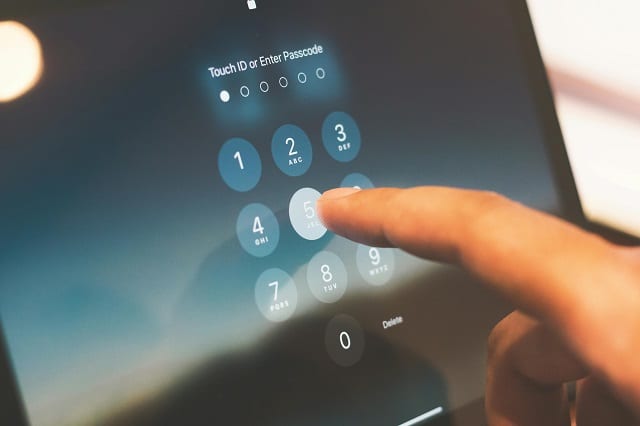
Enable biometric unlock as a backup. Most modern Motorola phones support fingerprint sensors or face recognition. These provide convenient access while maintaining security. If you forget your PIN, you can still unlock with your fingerprint.
Keep your Google account information accessible. Write down your gmail address and password in a secure location that’s separate from your phone. Update this information whenever you change your password.
Set up regular automatic backups. Enable Google backup in your phone settings to ensure contacts, photos, and app data sync regularly to your Google account. This protects your information if you ever need to perform a factory reset.
Consider using a SIM card with an eSIM backup for important travel or business trips. Services like BazTel offer eSIM options that work across 160+ countries. If your phone gets locked while traveling, you can at least maintain connectivity on another unlocked device while you resolve the issue.
When the Standard Methods Don’t Work
Occasionally, the power button or volume buttons malfunction on Motorola phones. Physical damage or wear can make it impossible to access recovery mode using the button combinations described above.
If your power button doesn’t respond, try connecting your phone to a charger. Some Motorola models will automatically power on when connected to a power source, letting you attempt the recovery mode process. If the phone still won’t respond, professional repair may be necessary to replace the faulty button before you can proceed.
Severe software corruption can sometimes prevent recovery mode from loading properly. The phone might boot loop, showing the Motorola logo repeatedly without ever reaching the recovery menu. In these cases, you may need to use Motorola’s official software repair tools or visit an authorized service center.
Water damage complicates everything. If your phone has been exposed to moisture and is now locked, allow it to dry completely in rice or silica gel for at least 48 hours before attempting any unlock procedure. Water inside the device can cause erratic behavior during the reset process.
Understanding Factory Reset Protection
Factory Reset Protection (FRP) deserves special attention because it catches many people by surprise after they’ve successfully completed a factory reset. The android system activates FRP when you have an active Google account on your device and perform a reset.
After the reset completes and the phone reboots, you’ll see the normal welcome and setup screens. You’ll connect to WiFi, agree to terms, and then suddenly see a screen asking to verify your Google account. This screen says something like “This device was reset. To continue, sign in with a Google account that was previously synced on this device.”
You must enter the exact gmail address that was used on the phone before the reset. If you have multiple Google accounts and can’t remember which one, try each one. The password must also be current—if you changed your Google password recently, use the new password.
FRP exists to prevent phone theft. Without this security feature, thieves could simply factory reset stolen phones and sell them. While frustrating for legitimate owners who’ve forgotten their credentials, FRP significantly reduces the value of stolen Android devices.
Final Thoughts on Unlocking Your Motorola Phone
Getting locked out of your Motorola phone ranks among the most stressful tech problems, especially when you need immediate access to important information or travel documents. The good news is that proven solutions exist, though most require accepting that data loss is inevitable.
The recovery mode method works reliably across all Motorola models from the Moto E to the Moto G series and newer Motorola Edge devices. While the specific button combinations might vary slightly, the general process remains consistent: power off, hold volume down and power to access the boot menu, select recovery mode, navigate the no command screen, choose factory data reset, and reboot.
Remember that unlocking your device is only half the solution. Taking preventive steps—enabling biometric security, maintaining Google account access, and backing up regularly—will save you from future lockout situations. For international travelers using services like BazTel eSIM, having both your primary device and backup access secured properly ensures you maintain connectivity even if one device experiences problems.
The unlocking process typically takes 15-30 minutes from start to finish, though you’ll spend additional time setting up the phone again afterward. Patience during the reboot system phase is important, as interrupting the process can create more complex problems.
If you found these instructions helpful, share them with others who might face similar lock screen challenges with their Motorola phones.

Blog Author
Peter
Peter started BazTel.co to make mobile internet easier for travellers. He noticed how tough it was to find good network options while visiting new countries. That’s when he built BazTel — a place where anyone can buy eSIMs online without confusion or long steps. He believes tech should be simple and useful, not complicated. When he’s free, he likes to travel, test BazTel himself, and keep improving it based on real user problems.