
 Botswana
 Zambia
 Congo
Congo Colombia
 China mainland
 Chile
Chile Chad
Chad Central African Republic
 Canada
 Cameroon
 Cambodia
 Burkina Faso
 Bulgaria
 Brunei Darussalam
 Brazil
 Aland Islands
 Bosnia and Herzegovina
 Bolivia
 Belgium
 Belarus
 Bangladesh
 Bahrain
 Azerbaijan
 Austria
 Australia
 Armenia
 Argentina
 Algeria

You’re trying to check your email or browse the web, but instead your mobile device displays an error: “Could not activate cellular data network” or PDP authentication failure. Your mobile data refuses to work even though signal bars appear normal. This authentication failure affects thousands of users daily, but most cases can be resolved within minutes using the right troubleshooting steps.
As of January 2026, PDP authentication failure remains one of the most reported mobile network issues for both physical SIM card and eSIM users. This comprehensive guide explains what PDP authentication failure means and provides proven solutions to restore your data connection. Whether you’re using a BazTel eSIM or another service provider, these methods will help you fix PDP authentication failure quickly and regain internet connectivity.
What Does PDP Authentication Failure Mean?
PDP authentication failure occurs when your mobile device cannot establish a proper connection with your mobile network to access data services. Understanding what PDP authentication failure means helps you troubleshoot effectively.
PDP stands for Packet Data Protocol, the system your phone uses to communicate with the cellular network and access mobile internet. Think of Packet Data Protocol as a digital handshake between your device and the network. When you enable mobile data, your device sends a request using specific credentials and network settings. The mobile service provider then verifies this information through Packet Data Protocol authentication. If something disrupts this authentication process, you’ll see the PDP authentication errors on your screen.

According to the Global System for Mobile Communications Association, less than 2% of authentication requests fail due to network infrastructure under normal conditions. This means most authentication failure issues stem from device settings, incorrect APN settings, or SIM card problems rather than your service provider’s infrastructure, making them relatively straightforward to solve.
Common Causes of PDP Authentication Failure
Understanding what causes PDP authentication failure helps you fix authentication errors faster. This authentication failure typically happens due to several key factors.
Incorrect or Missing APN Settings
The Access Point Name serves as a gateway between your mobile device and internet access. Your device needs correct APN settings to properly connect to your mobile service provider’s data network. If these network settings are wrong, missing, or corrupted, PDP authentication fails. This commonly occurs when switching networks between different carriers or when your device’s APN settings weren’t configured correctly during initial setup.
Each service provider requires specific APN settings. If your mobile device has incorrect settings, the authentication process cannot complete successfully. Sometimes a physical SIM card or eSIM installs without automatically configuring the access point, requiring manual entry of APN settings to access data services.
SIM Card Configuration Issues
For users with either physical SIM cards or eSIM profiles, improper configuration is a frequent cause of authentication problems. Your SIM card might not be properly installed, the mobile data plan could be expired, or the profile might be corrupted. Sometimes PDP authentication issues occur simply because you have multiple SIM cards active simultaneously, creating conflicts in your mobile network settings.
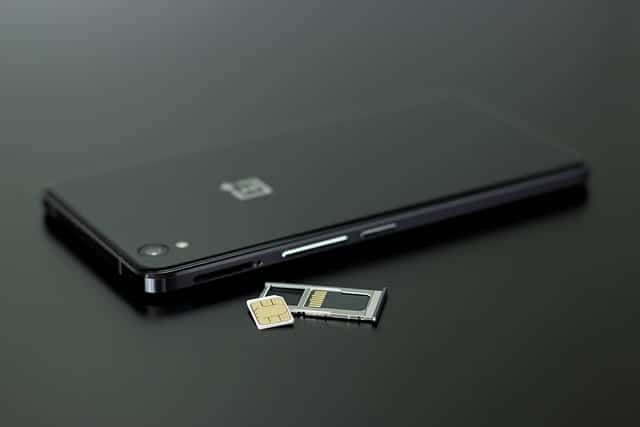
Physical SIM card users may experience authentication errors if the card isn’t seated correctly in the tray or if the card itself is damaged. Even minor damage to a physical SIM can prevent the authentication process from completing, causing persistent PDP authentication failure.
Outdated Carrier Settings and Operating System
Mobile service providers regularly update their network configurations. If your mobile device runs outdated carrier settings, it may attempt to connect using protocols no longer supported, resulting in authentication failure. This commonly affects users who haven’t updated their device software or operating system in several months.
Your operating system includes important updates that improve how your mobile device handles network authentication. Running an outdated operating system can cause PDP authentication to fail even when all other network settings are correctly configured. Both iOS and Android operating system updates often include fixes specifically designed to solve PDP authentication failure.
Network Issues and Poor Signal
Sometimes authentication problems aren’t related to your device settings at all. Network congestion, temporary outages, or weak signal strength can prevent successful Packet Data Protocol authentication. If you’re in a location with poor coverage, your mobile device may struggle to complete the authentication process with your network provider’s infrastructure.
Network issues on the carrier’s network side can also trigger authentication errors. During maintenance windows or network upgrades, your service provider might temporarily experience authentication problems that affect multiple users simultaneously.
Expired Data Plan or Account Issues
This cause is often overlooked but surprisingly common among users experiencing PDP authentication failure. If your mobile data plan has expired, you’ve exhausted all the data allocation, or there are account issues with your service provider, the network will reject your authentication request. For international travelers, forgetting to enable data roaming can produce the same authentication errors even when network settings are correctly configured.
Account status problems such as billing issues, suspended service, or incorrect account provisioning can all cause PDP authentication to fail. Your mobile device might show full signal bars but still cannot access data services because your account status prevents successful authentication.
How to Fix PDP Authentication Failure on iPhone
If you’re seeing this authentication failure on your iPhone or iPad, follow these troubleshooting steps in order. Most users successfully solve PDP authentication failure with the first or second method.
Solution 1: Toggle Airplane Mode
The quickest way to fix PDP authentication failure involves resetting your connection using airplane mode. Open Control Center by swiping down from the top-right corner. Tap the airplane icon to turn airplane mode on, wait 10 to 15 seconds, then tap again to disable it. This forces your mobile device to reconnect to the mobile network with fresh network settings.

When you toggle airplane mode, your iPhone disconnects from all cellular and Wi-Fi connections, then re-establishes them. This process often clears temporary authentication problems that prevent your device from accessing data services.
Solution 2: Reset iPhone
A simple restart clears temporary software glitches that might interfere with the authentication process. Press and hold the power button until the “slide to power off” slider appears, then slide to shut down. Wait about 30 seconds before pressing the power button again to turn your mobile device back on.
When you reset iPhone, the operating system reloads all network configurations and clears memory caches that might contain corrupted network settings. This simple step resolves many cases of PDP authentication failure without requiring more advanced troubleshooting steps.
Solution 3: Reset Network Settings
This solution resolves the majority of persistent authentication failure cases. Navigate to Settings, then General, then Transfer or Reset iPhone. Select Reset, then choose the option to reset network settings. You’ll need to enter your passcode to confirm this action.
Important note: when you reset network settings, your iPhone will not delete your SIM card or eSIM profile, but it will erase saved Wi-Fi connection passwords, Bluetooth pairings, and VPN configurations. After the reset completes and your iPhone restarts, check Settings > Cellular to verify your SIM card or eSIM is still active.
The reset network settings function returns all mobile network settings to factory defaults, which eliminates incorrect settings that cause PDP authentication to fail. After completing this step, your iPhone will need to reconfigure its connection to your service provider’s network with default authentication parameters.
Solution 4: Verify Your Device’s APN Settings
Open Settings and select Cellular or Mobile Data. Tap your SIM card line, then select Cellular Data Network or Mobile Data Network. Here you’ll see fields for your device’s APN settings including access point, username, and password.
If you’re using a BazTel SIM card, verify that the APN settings match the information provided during activation. The access point name should be entered in lowercase with no spaces. An incorrect username or incorrect APN can prevent Packet Data Protocol authentication from succeeding.
For many service providers as of January 2026, automatic configuration handles APN settings when you insert your physical SIM card or install an eSIM. However, if automatic setup failed, you may need to enter these network settings manually to fix authentication errors. Contact your network provider if you’re unsure what values to use.
Solution 5: Check SIM Card Status and Data Plan
Go to Settings > Cellular and tap your SIM card to view its details. Confirm that the card shows as active and that cellular data is enabled for that line. If you have multiple SIM cards or eSIM profiles, ensure the correct one is selected for mobile data in cellular settings.
Verify your mobile data plan hasn’t expired and that you have remaining data allocation. Most service providers include this information in their mobile app or account portal. Running out of all the data or using an expired cellular plan will trigger authentication failure even if all network settings are correctly configured.
How to Solve PDP Authentication Failure on Android Devices
Android users can solve PDP authentication failure using similar methods, though exact steps vary depending on your device manufacturer and operating system version.
Solution 1: Enable and Disable Airplane Mode
Swipe down from the top of your screen to access Quick Settings. Tap the airplane mode icon to enable it, wait 10 to 15 seconds, then tap again to turn it off. This refreshes your connection to the mobile network and often resolves temporary authentication problems.
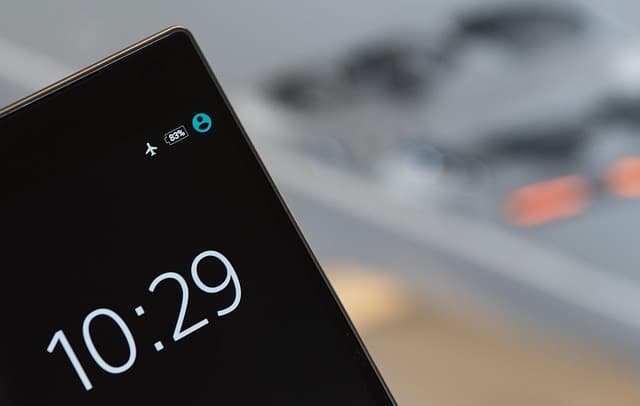
When you toggle airplane mode on Android devices, the operating system drops all active connections and re-initiates the authentication process with your network provider when you turn it back off. This simple action can clear transient authentication errors without requiring more complex troubleshooting steps.
Solution 2: Restart Your Android Device
Press and hold the power button until the power menu appears. Tap Restart or Reboot. If your mobile device doesn’t have a restart option, select Power Off, wait 30 seconds, then press the power button to turn it back on.
Restarting your Android device clears temporary software conflicts that may prevent proper network authentication. The operating system reloads all network settings and re-establishes the connection to your service provider’s network infrastructure.
Solution 3: Reset Network Settings Through Reset Options
The process to reset network settings varies by Android operating system version and manufacturer. On most Android devices, go to Settings > System > Reset Options > Reset Wi-Fi, mobile & Bluetooth. On Samsung devices, navigate to Settings > General Management > Reset > Reset Options > Reset Wi-Fi and mobile settings.
Select the reset network settings option and confirm the action. Wait for your mobile device to complete the process. This action will clear all saved Wi-Fi connection passwords, Bluetooth pairings, and VPN configurations, but it will not delete your physical SIM card or eSIM profile.
When you reset network settings on Android devices, the operating system removes all stored mobile network settings and returns them to factory defaults. This eliminates incorrect settings that cause authentication failure and allows your device to properly connect with fresh configuration from your service provider.
Solution 4: Verify and Configure APN Settings
Open Settings and navigate to Network & Internet > Mobile Network > Advanced > Access Point Names. You’ll see a list of configured access points. If you’re using a BazTel SIM card or another service provider, ensure there’s an entry matching your provider’s specifications.
To add or edit APN settings, tap the plus icon or select an existing entry. Enter the access point details exactly as provided by your network provider, paying close attention to capitalization and spacing. Typical fields include Name, APN address, Username, and Password. Many service providers don’t require an incorrect username or password fields, so leave those blank unless your carrier specifies otherwise.
After saving changes to your device’s APN settings, select the correct access point by tapping the radio button next to it. Restart your mobile device to apply the new network settings. Incorrect APN settings are one of the most common causes PDP authentication failure on Android devices.
Solution 5: Update Operating System and Carrier Settings
Outdated device software can cause compatibility issues with newer network configurations from your service provider. Check for Android operating system updates by going to Settings > System > System Update. Install any available updates, as these often include important carrier settings profiles and bug fixes that solve PDP authentication failure.
Some Android devices also allow manual carrier settings updates. On Samsung devices, this option appears under Settings > About Phone > Software Update. Other manufacturers may place this in different locations or handle it automatically. Keeping your operating system current helps avoid PDP authentication issues caused by outdated network protocols.
Will Reset Network Settings Delete My SIM Card?
This question arises frequently when users need to troubleshoot authentication failure. The answer is no—when you reset network settings, your mobile device does not delete your physical SIM card or eSIM profile.
SIM card profiles, whether physical SIM or eSIM, are stored in your device’s embedded hardware, which remains separate from your network settings. When you reset network settings, your device clears Wi-Fi connection passwords, Bluetooth connections, VPN configurations, and APN settings, but the SIM card itself remains intact and will automatically reconnect after the reset completes.
However, a factory reset is different. A full factory reset will erase everything, including eSIM profiles. Physical SIM card users won’t lose the card itself, but all the data and settings on the device will be deleted. If you need to perform a factory reset, make sure to note your eSIM activation details so you can reinstall it afterward. Most service providers allow you to download installation credentials from your account even after deletion. If you are wondering what happens if you delete your eSIM, you can read more about the consequences and how to recover or reinstall it.
Preventing PDP Authentication Failure When Traveling
For travelers switching networks between countries, taking preventative steps before your trip can help you avoid PDP authentication failure.
Before leaving home, ensure your device software and operating system are fully updated. Both iOS and Android release updates that improve network authentication compatibility and fix known authentication problems. Install these updates while connected to a Wi-Fi connection rather than waiting until you’re abroad relying on mobile data.
When purchasing a travel SIM card or eSIM, install and activate it before departing if your service provider allows pre-activation. This lets you verify the network settings work correctly while you still have access to your home internet connectivity. Test the card by temporarily disabling your primary SIM and confirming mobile data works with the travel option.

Double-check that data roaming is enabled for your SIM card in your device settings. Many users forget this step, which prevents the card from accessing data services on foreign networks even when all other settings are correctly configured. Enable this before you need it to avoid PDP authentication issues abroad.
Keep your network provider’s customer support contact information readily available. If you encounter authentication errors while traveling, having quick access to support can significantly reduce downtime and help you solve PDP authentication failure faster.
Understanding Temporary vs. Persistent Authentication Failure
Not all authentication failure cases are identical. Recognizing whether you’re dealing with a temporary or persistent problem helps determine the best troubleshooting steps.
Temporary authentication problems occur sporadically and often resolve on their own. You might see PDP authentication errors appear briefly when moving between coverage areas, during peak times when your mobile network experiences network congestion, or immediately after switching from Wi-Fi connection to mobile data. These transient issues typically don’t require intervention beyond using airplane mode or waiting a few minutes.
Persistent authentication failure occurs consistently whenever you try to use mobile data. If PDP authentication fails every time you disable Wi-Fi or attempt internet access through cellular network, you’re likely dealing with a configuration issue requiring manual correction. Persistent cases warrant working through the troubleshooting steps systematically until resolved.
When to Contact Your Service Provider
If you’ve tried all the troubleshooting steps above and still experience PDP authentication failure, the problem may require service provider intervention.
Contact your mobile service provider’s technical support if authentication errors persist for more than 24 hours after attempting all fixes. They can check for account issues, verify your service is active, and confirm there are no network issues affecting your area. For eSIM users, your network provider can also verify that your profile is properly installed on their infrastructure and reissue activation credentials if needed.
When contacting support, provide specific details about when PDP authentication failure started, what troubleshooting steps you’ve already attempted, your mobile device make and model, and your current location if traveling internationally. This information helps support representatives diagnose authentication problems more quickly.
Some network issues require changes on your service provider’s end, such as resetting your authentication session or updating your account provisioning. These actions can only be performed by your carrier’s technical team and cannot be fixed through device settings alone.
The Role of BazTel in Preventing Authentication Errors
BazTel’s SIM card and eSIM services include several features designed to minimize PDP authentication failure for international travelers. As of January 2026, BazTel provides pre-configured APN settings that install automatically with your SIM card profile, reducing the likelihood of incorrect settings that cause authentication errors.
When you activate a BazTel eSIM, the service includes detailed setup instructions tailored to your specific mobile device type. The activation email contains your unique APN settings if manual configuration becomes necessary. BazTel’s network partnerships across multiple countries mean your SIM card can seamlessly access data services on local networks without requiring constant manual adjustments to network settings.

For troubleshooting support, BazTel customers can access 24/7 technical assistance through the customer portal. The support team can remotely verify your SIM card status, confirm your data plan balance, and provide device-specific guidance for resolving authentication failure and restoring internet connectivity.
Additional Troubleshooting Steps for Persistent Issues
If standard methods don’t solve PDP authentication failure, try these additional approaches.
Check for Physical SIM Card Damage
If you’re using a physical SIM card rather than an eSIM, remove it from your mobile device and inspect it for damage. Look for scratches, chips, or dirt on the gold contacts. Clean the contacts gently with a soft, dry cloth. Even minor damage to a physical SIM can prevent the authentication process from completing successfully.
Reinsert the SIM card carefully, ensuring it’s properly installed in the correct orientation. Sometimes a physical SIM that isn’t fully seated in the tray can cause intermittent authentication problems.
Verify Mobile Network Settings
Beyond APN settings, check other mobile network settings that affect how your device connects. On iPhone, go to Settings > Cellular > Cellular Data Options and verify that your cellular plan is enabled. On Android devices, navigate to Settings > Network & Internet and confirm that mobile data is turned on.
Some mobile devices have separate settings for each SIM card when using dual-SIM functionality. Verify that the correct SIM card is set as the default for data services in your device settings.
Test with Different Network Providers
If you have access to another SIM card from a different service provider, temporarily insert it to determine if the authentication failure is specific to your current card or a broader mobile device issue. If PDP authentication works fine with a different card, the problem likely relates to your original SIM card or account status rather than device settings.
This test helps isolate whether you’re dealing with authentication problems caused by device configuration, a faulty physical SIM, or issues on your service provider’s network.
Avoiding PDP Authentication Failure Through Proper Configuration
Prevention is easier than troubleshooting. Follow these practices to avoid PDP authentication failure before it occurs.
When you first install a SIM card or eSIM, verify that automatic configuration completed successfully. Check your mobile network settings within a few minutes of insertion. Confirm that APN settings appear populated and that cellular data works before you rely on the connection.
If your mobile device doesn’t automatically configure network settings, contact your service provider immediately to get the correct APN settings. Don’t wait until you need internet access to discover that your device isn’t correctly configured.
Keep your operating system updated with the latest version. Set your mobile device to automatically download and install updates when connected to Wi-Fi connection. These updates often include improvements to the authentication process and fixes for known authentication errors.
Save a backup of your APN settings by taking a screenshot or writing them down. If you ever need to reset network settings, you can quickly re-enter the correct access point information without contacting your network provider.
Conclusion: Solving PDP Authentication Failure Successfully
PDP authentication failure is frustrating but rarely serious. In most cases, you can solve PDP authentication failure within minutes using the troubleshooting steps outlined in this guide. Start with simple fixes like using airplane mode and restarting your mobile device, then progress to reset network settings if needed.
Remember these key takeaways: when you reset network settings, it won’t delete your SIM card, incorrect APN settings are among the most common causes PDP authentication failure, and keeping your operating system updated prevents many authentication problems. For travelers switching networks between countries, proper configuration before departure and enabling data roaming are essential steps to avoid PDP authentication issues.
If standard troubleshooting steps don’t fix PDP authentication failure, don’t hesitate to contact your service provider’s support team. They have tools and network access to diagnose account issues and authentication problems that you can’t resolve through device settings alone. With the right approach and these proven methods, you’ll restore your mobile data connection and regain internet connectivity quickly.

Blog Author
Peter
I'm Peter, the founder of BazTel. I built this company at the intersection of two things I know well: finance and travel. Before starting BazTel, I worked in investment analytics at State Street, one of the world's largest custodian banks, and later at TCorp, the New South Wales Government's investment…


