Botswana
 Zambia
 Congo
Congo Colombia
 China mainland
 Chile
Chile Chad
Chad Central African Republic
 Canada
 Cameroon
 Cambodia
 Burkina Faso
 Bulgaria
 Brunei Darussalam
 Brazil
 Aland Islands
 Bosnia and Herzegovina
 Bolivia
 Belgium
 Belarus
 Bangladesh
 Bahrain
 Azerbaijan
 Austria
 Australia
 Armenia
 Argentina
 Algeria

You’re on a FaceTime call from Rome, trying to show your family the stunning view from your hotel balcony. You tap the screen share button and… nothing. It’s greyed out. Or maybe you’re helping a colleague troubleshoot something urgent while working remotely from Bali, and FaceTime screen sharing simply refuses to cooperate.
I’ve been there, and it’s incredibly frustrating. As someone who relies on FaceTime for both personal and professional connections while traveling, I’ve encountered every screen sharing issue imaginable. The good news? Most problems have simple fixes that take just minutes to resolve.
This guide walks you through exactly why FaceTime screen sharing fails and how to fix it, with special attention to challenges travelers face when using screen share FaceTime features abroad. Whether you’re dealing with a greyed-out button, SharePlay that won’t activate, or connection issues on your eSIM data, I’ll show you practical solutions that actually work.
Understanding FaceTime Screen Sharing and SharePlay
Before we dive into fixes, let’s clarify what’s happening under the hood. FaceTime screen sharing relies on a feature called SharePlay, which Apple introduced in iOS 15.1 back in 2021. SharePlay allows you to share your iPhone, iPad, or Mac screen with others during a FaceTime call, making it incredibly useful for everything from showing vacation photos to providing remote tech support.
However, SharePlay and basic screen sharing aren’t quite the same thing. SharePlay enables synchronized media experiences (watching movies together, listening to music), while screen share FaceTime functionality lets you broadcast whatever’s on your screen. Both features require iOS 15.1, iPadOS 15.1, or macOS Monterey 12.1 minimum.
Here’s what matters: as of January 2026, most iPhones running current software support this feature. If you have an iPhone XS or newer with recent iOS updates, you should have access to FaceTime screen sharing.
Why Your Screen Share Button is Greyed Out
The greyed-out screen share button is the most common complaint I hear from fellow travelers. When that Share My Screen option is unclickable, it’s almost always due to one of these specific reasons.
iOS Version Compatibility Issues
The most frequent culprit is outdated software. Both you and the person you’re calling need iOS 15.1 or later for screen sharing to work. When I was traveling through Southeast Asia last year with my BazTel eSIM keeping me connected, I tried screen sharing with a friend only to discover her iPhone was still on iOS 14. The button appeared greyed out on my end because her device simply couldn’t support the feature.
Check your iOS version by opening Settings, tapping General, then About. If you’re below iOS 15.1, head to Software Update and install the latest version. Remember, both participants need compatible software versions.
SharePlay Toggle Disabled
Sometimes the simplest explanation is the correct one. SharePlay might just be turned off in your settings. This happened to me in Portugal when I couldn’t figure out why FaceTime screen sharing suddenly stopped working after it had functioned perfectly the day before.
Go to Settings, scroll to FaceTime, then tap SharePlay. Make sure the toggle is switched on. It sounds almost too simple, but this single step fixes the problem more often than you’d expect.
iCloud Sign-In Problems
FaceTime screen sharing requires both users to be signed into iCloud with their Apple IDs. If you’re not signed in, or if there’s an authentication issue, the screen share button will be greyed out or missing entirely.
Verify your iCloud status by going to Settings and tapping your name at the top. You should see your Apple ID email and iCloud status. If you’re signed out, sign back in. This is particularly relevant for travelers who might have signed out to avoid data charges or inadvertently logged out while switching between devices.

The Emoji Contact Name Bug
This one sounds bizarre, but it’s real. Adding emojis to contact names can break FaceTime screen share functionality. I discovered this issue firsthand when trying to share my screen with a client whose contact entry included flag emojis. The moment I removed the emojis and saved the contact with plain text only, screen sharing worked immediately.
Edit the contact name, remove any emoji or special characters, and try again. It’s a strange bug, but it affects enough users that it’s worth checking.
Eight Fixes When FaceTime Screen Share Isn’t Working
Let’s tackle this systematically. Here are eight proven solutions, starting with the quickest fixes and progressing to more involved troubleshooting.
Fix 1: Restart the FaceTime App
Close FaceTime completely and reopen it. This clears temporary glitches that can interfere with screen sharing. On iPhone, swipe up from the bottom (or double-click the Home button on older models), find FaceTime in the app switcher, and swipe it away. Then reopen the app and try your FaceTime call again.
This simple restart resolves minor software hiccups that accumulate during extended use, especially when you’re traveling and relying heavily on FaceTime to stay in touch.
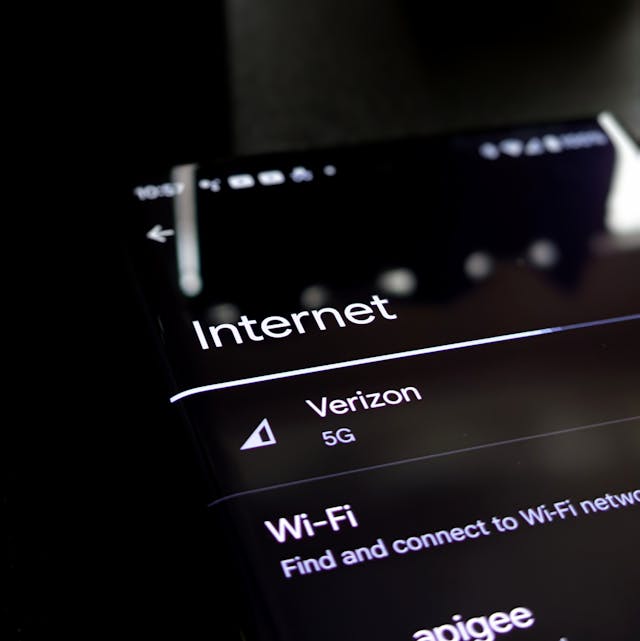
Fix 2: Check Your Internet Connection
Screen share FaceTime features demand stable internet connectivity. While audio-only FaceTime calls work on modest connections, screen sharing requires significantly more bandwidth. As a BazTel eSIM user traveling across Europe, I’ve learned that not all data connections are equal.
When using eSIM data while traveling abroad, test your connection speed before attempting screen sharing. Hotel WiFi and public networks often have inconsistent performance that causes SharePlay to fail or the screen share button to appear greyed out. If possible, switch to your eSIM data connection, which typically provides more reliable performance for bandwidth-intensive features like FaceTime screen sharing.
A weak or unstable connection will either prevent screen sharing from starting or cause it to disconnect mid-session. Consider switching networks or waiting for a stronger signal.
Fix 3: Verify Both Devices Meet Requirements
Both you and your contact must have compatible devices. For iPhones and iPads, that means iOS 15.1 or iPadOS 15.1 minimum. For Macs, you need macOS Monterey 12.1 or later.
This is especially relevant when FaceTiming family members who might not update their devices regularly. A quick message asking them to check their iOS version can save significant troubleshooting time.
Fix 4: Sign Out and Back Into FaceTime
Sometimes your FaceTime authentication needs refreshing. Go to Settings, tap FaceTime, then tap your Apple ID and select Sign Out. Wait about 30 seconds, then sign back in with your Apple ID credentials.
This process clears authentication tokens and can resolve issues where FaceTime screen sharing fails despite everything else appearing correct. It’s particularly useful after traveling internationally and switching between cellular data and WiFi networks.
Fix 5: Reset Network Settings
When connection issues persist despite strong signal strength, resetting your network settings often helps. This clears saved WiFi networks, VPN configurations, and cellular settings, giving you a fresh start.
Go to Settings, select General, tap Transfer or Reset iPhone, choose Reset, then select Reset Network Settings. You’ll need your passcode to confirm. Note that this removes all saved WiFi passwords, so make sure you have them handy before proceeding.
After the reset, reconnect to your eSIM data or WiFi network and test screen share FaceTime functionality again. This fix resolved my persistent SharePlay issues when traveling through Japan, where I’d accumulated dozens of saved networks that were somehow interfering with FaceTime.
Fix 6: Remove Contact Name Emojis
As mentioned earlier, emojis and special characters in contact names can break screen sharing. Edit any contacts you’re trying to share your screen with and remove all emojis, keeping only standard letters and numbers. This fix is quick and surprisingly effective.
Fix 7: Update to the Latest iOS Version
Even if you have iOS 15.1 or later, running the absolute latest iOS version eliminates bugs and compatibility issues that Apple has patched in recent updates. As of January 2026, iOS 18 is current, and it includes numerous improvements to FaceTime and SharePlay stability.
Open Settings, tap General, then Software Update. If an update is available, download and install it. Do this while connected to WiFi to avoid consuming your eSIM data allowance.
Fix 8: Restart Your iPhone
The classic “turn it off and on again” solution works remarkably often. A full device restart clears system memory and resets all background processes, including those that manage FaceTime screen sharing.
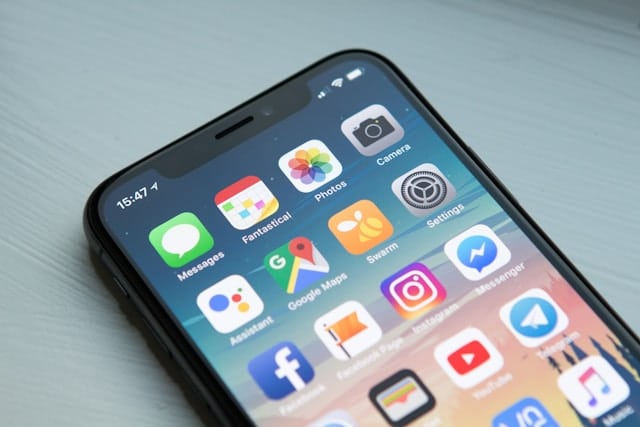
For iPhone models with Face ID, press and hold the side button and either volume button until the power off slider appears. For iPhones with a Home button, press and hold the side button. Slide to power off, wait 30 seconds, then power back on by pressing and holding the side button.
After restarting, try your FaceTime call and test whether you can now share your screen.
Special Considerations for International Travelers
Traveling internationally adds unique variables that can affect FaceTime screen sharing. Here’s what I’ve learned from extensive travel while staying connected through my BazTel eSIM.
Data Connection Quality Matters
Not all mobile data is created equal. Traditional roaming often throttles bandwidth or provides inconsistent speeds that make screen share FaceTime features unreliable. This is where having a dedicated travel eSIM makes a significant difference.

With my BazTel eSIM, I get consistent 4G/5G speeds across 160+ countries, which provides the stable connection FaceTime screen sharing requires. If you’re experiencing repeated failures despite following all the troubleshooting steps, your data connection quality might be the limiting factor.
Test your connection by running a speed test before attempting screen sharing. You’ll want at least 5-10 Mbps upload speed for smooth FaceTime screen sharing performance.
Regional Restrictions and VPN Considerations
Some countries restrict or limit VoIP services like FaceTime. While the app might work for standard calls, certain features including screen sharing can be blocked or degraded. The UAE, for example, has historically restricted FaceTime functionality.
If you’re traveling to regions with VoIP restrictions, research local regulations before relying on FaceTime screen sharing for important communications. Having alternative video calling options (Zoom, Microsoft Teams) as backup plans is always wise.
Time Zone Coordination
This isn’t technical, but it’s practical: when troubleshooting FaceTime screen sharing issues with someone in a different time zone, coordinate a time when you can both actively test solutions. Delayed back-and-forth troubleshooting rarely works well when you’re trying to share my screen FaceTime with someone who’s asleep.
Preventing Future Screen Sharing Issues
Once you’ve got FaceTime screen sharing working, keep it that way with these preventive measures.
Keep iOS Updated
Enable automatic updates in Settings > General > Software Update > Automatic Updates. This ensures you receive bug fixes and improvements that prevent screen sharing issues from developing.
Maintain Clean Contact Entries
Avoid adding emojis to contact names. While they’re fun, they’re not worth the potential FaceTime complications. Stick with plain text for anyone you might need to screen share with.
Monitor Your Data Connection
When traveling abroad with an eSIM, check your data allowance regularly. FaceTime screen sharing consumes significantly more data than audio calls—roughly 5-15 MB per minute for video quality screen sharing. Running out of data mid-session can cause confusion about whether the problem is technical or simply exhausted data allowance.
Test Before Important Calls
If you have an important FaceTime screen share session scheduled (like walking someone through a technical process or presenting information), test the feature 10-15 minutes beforehand with a quick call to another contact. This gives you time to troubleshoot if something’s wrong, rather than discovering issues when it matters most.
What to Do When Nothing Works
If you’ve tried all eight fixes and screen share FaceTime still isn’t functioning, you’re dealing with either a hardware limitation or a deeper software issue that requires Apple support.
Contact Apple Support directly through their support website or by visiting an Apple Store if you’re near one. Explain that you’ve already tried basic troubleshooting, including verifying iOS versions, checking SharePlay settings, and resetting network settings. This helps them move past first-level support quickly.
In the meantime, consider alternative screen sharing methods. Apps like Zoom, Microsoft Teams, and Google Meet offer similar functionality and work across different device ecosystems. While they’re not as seamlessly integrated as FaceTime for Apple users, they can serve as temporary solutions until you resolve your FaceTime issues.
Staying Connected While Traveling
FaceTime screen sharing has become essential for modern travelers, whether you’re showing family your adventures in real-time, collaborating with remote teams, or helping someone back home troubleshoot their own device. When it works seamlessly, it creates connections that transcend distance.
The key is reliable internet connectivity. During my travels, switching to a dedicated eSIM for international data transformed my experience with FaceTime and other connectivity-dependent services. No more hunting for WiFi passwords or dealing with expensive roaming charges—just consistent, affordable data that keeps SharePlay and screen sharing working smoothly.
If you frequently travel and depend on FaceTime screen sharing, investing in a quality travel eSIM isn’t just about connectivity—it’s about ensuring the features you need actually work when you need them. That greyed-out screen share button isn’t so frustrating when you have a reliable data connection backing you up.

Blog Author
Peter
Peter started BazTel.co to make mobile internet easier for travellers. He noticed how tough it was to find good network options while visiting new countries. That’s when he built BazTel — a place where anyone can buy eSIMs online without confusion or long steps. He believes tech should be simple and useful, not complicated. When he’s free, he likes to travel, test BazTel himself, and keep improving it based on real user problems.